If you want to know how to use ChatGPT Sites, start with one practical rule: treat every Site as a real web project, not a throwaway preview. ChatGPT can help you build the interface, revise it, save versions, and publish it, but you still need to define the user workflow, review the content, carefully choose access, and test the production URL before anyone depends on it.
Hi everyone, I'm Elin. This is a ChatGPT Sites tutorial for founders and small teams who want to publish a lightweight web app without turning the process into a full engineering project. It is not a custom-domain guide, payment setup guide, or quota breakdown. Those details can change by plan, region, and workspace settings, so verify them at launch.
Before You Start
Before you ask ChatGPT to build anything, decide what the web app should do for one audience.
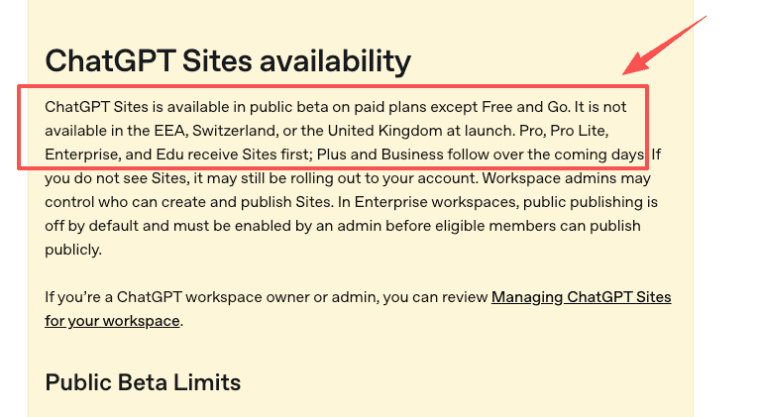
ChatGPT Sites is in public beta. Availability depends on plan, region, rollout status, and workspace settings. Auth and org features map cleanly to the Codex WorkOS integration. Sites is available on paid plans except Free and Go, and it is not available in the EEA, Switzerland, or the United Kingdom at launch. Enterprise admins may also control who can create or publish Sites.
Confirm availability and choose one user workflow
Start by confirming that Sites is available in your account and workspace. Then choose one workflow: a project tracker, internal portal, dashboard, report hub, simple calculator, launch calendar, prototype, or lightweight customer-facing tool.
The useful starting point is not "build a website with ChatGPT." It is "build a web app that helps this user complete this action."
Prepare content, data, files, and acceptance criteria
Prepare the content and data before prompting. Bring copy, tables, files, examples, links, constraints, and rules. Also define acceptance criteria: what must work, what must not be shown, what data should persist, what actions users can take, and what the mobile version should feel like.
This is where a good OpenAI Sites tutorial becomes less magical and more reliable. The clearer the source material, the less cleanup you need later.
Step 1 — Describe the Audience and Required Behavior
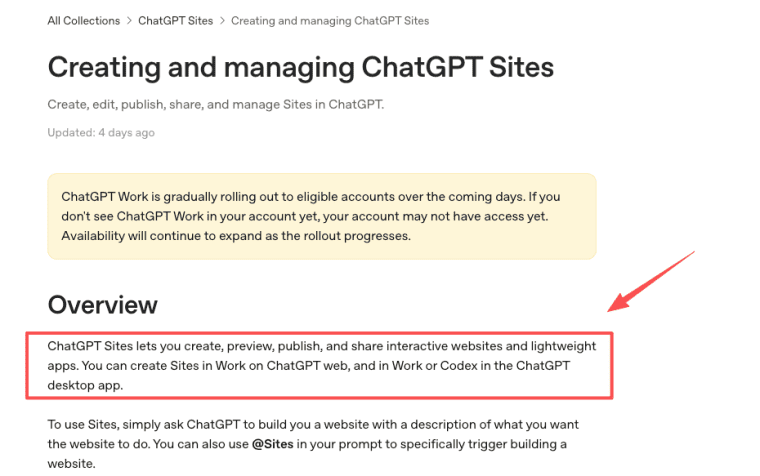
In ChatGPT Work on web, or Work or Codex in the desktop app, describe the website you want. Include the word "website" or use @Sites if you want to trigger Sites directly. Then explain the audience, purpose, core screens, required behavior, content sources, and constraints.
OpenAI frames Sites as a way to create interactive websites and lightweight apps, so prompt for behavior, not just layout. For example, ask for a client intake portal, a searchable report library, a dashboard with filters, or a launch tracker with editable records.
Step 2 — Review and Refine the Generated Site
Do not publish the first preview. Review it like a real product.
Check whether the Site explains itself, whether buttons behave as expected, whether generated copy is accurate, and whether the interface matches the user workflow. If something is wrong, ask ChatGPT to revise copy, layout, data, styles, links, forms, or interactive behavior.
Test content, actions, data handling, and mobile behavior
Test the content for factual errors, private information, weak claims, and broken links. Test actions by clicking through the actual flow. Test data handling by adding, editing, filtering, deleting, or exporting sample records where relevant.
Then test mobile behavior. A Site that looks clean on desktop can still fail if text overlaps, tables overflow, or actions are hard to tap on a phone.
Step 3 — Add the Right Data and Access Shape
A web app needs the right data shape. Do not add storage just because it sounds useful. Add it when the workflow needs memory.
Durable records, uploads, and searchable metadata
Durable records fit trackers, directories, approval boards, lightweight CRMs, logs, and project dashboards. File uploads may fit review portals, asset libraries, submission tools, or report hubs. Searchable metadata helps users find records later by status, owner, tag, date, client, or category.
Before launch, verify what storage behavior is available to your account and workspace. Hosted Sites can involve prompts, files, site code, generated artifacts, access settings, storage, metadata, logs, and operational data needed to run the Site, so the data model deserves review.
Workspace identity or public authentication
Access settings and in-app identity are separate decisions. A Site can be owner-only, shared with selected active users or groups where supported, available to a workspace, or public when public publishing is enabled. A public Site may be available without ChatGPT workspace access. A Site can also include its own sign-in behavior when that feature is intentionally added and supported.
Before you publish ChatGPT site links, test the visitor experience from the intended audience's side.
Step 4 — Save a Version Before Deployment
Save a version before deployment. This is not a tiny detail. It is the cleanest way to preserve the state you reviewed.
A saved version gives the team a known checkpoint. If later edits break the layout, data behavior, or access flow, you have a stable reference. For teams, the saved version should be tied to review notes: who checked it, what changed, what data was included, and whether the Site is ready for production.
The key workflow is simple: refine, review, save, then deploy.
Step 5 — Deploy and Choose the Narrowest Access
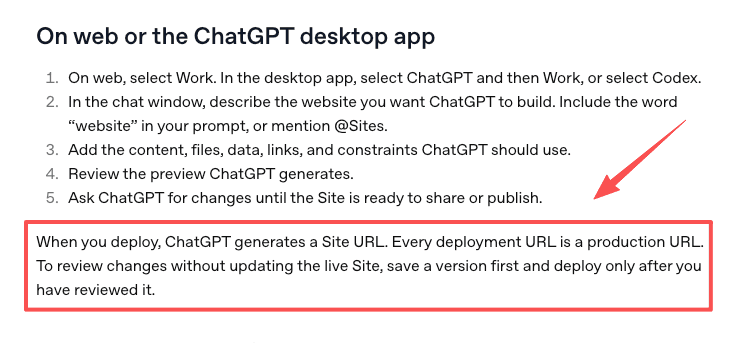
Deployment creates a live production URL. That means the Site is no longer just a private draft. OpenAI's Sites flow emphasizes that every deployment URL is production, so review before publishing.
Choose the narrowest access that matches the job. Owner-only is safer for drafts. Selected users or groups can work for private review. Workspace access can fit internal tools. Public access should be used only when the content, files, forms, and interactive behavior are ready for anyone on the internet.
If you are in a workspace, admin settings may limit public publishing. Workspace owners should define who can create, publish, share, review, and take down Sites through creation and publishing controls.
Step 6 — Test the Shared Production URL
After deployment, open the production URL like a visitor. Do not assume the preview and shared URL feel identical.
Check access, sign-in behavior, forms, links, storage, uploaded files, interactive actions, mobile layout, and any public content. If the Site collects personal information or visitor submissions, confirm that privacy copy and permissions match your intended use.
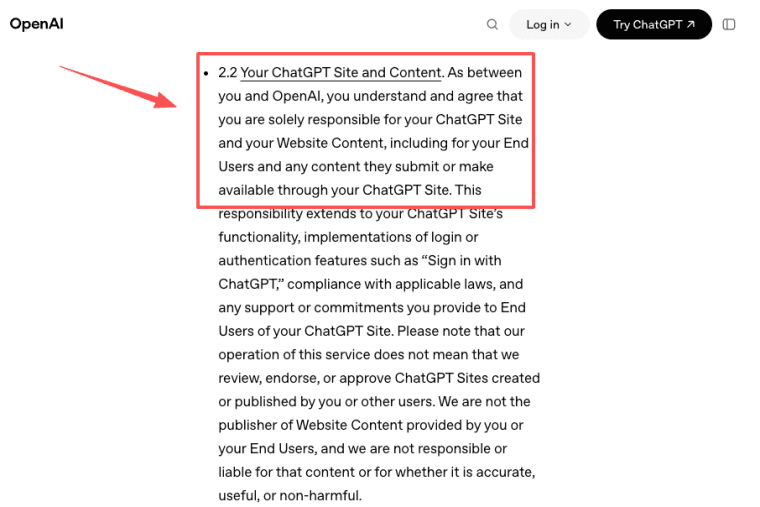
The ChatGPT Sites Terms place responsibility for Site content, end users, and compliance on the creator. That includes the way a Site handles Website Content, hosted data, and visitor information.
Common Build and Deployment Problems
The most common problem is vague prompting. If you ask for a "dashboard," ChatGPT has to invent the data model. Ask for specific fields, views, filters, roles, actions, and acceptance criteria.
The second problem is publishing too early. A preview can look good while hiding broken forms, wrong access settings, or private content.
The third problem is assuming unsupported features. Do not assume custom domains, payments, SEO controls, analytics, private networks, background services, or specific storage limits unless the current Sites experience confirms them for your workspace.
The fourth problem is weak ownership. Every live Site needs an owner who can respond to broken links, takedown requests, access issues, data questions, and deployment failures.
Publish Small, Review Carefully
ChatGPT Sites is useful when you need a hosted website or lightweight app that can be described, reviewed, refined, saved, deployed, and shared without leaving ChatGPT. The safest first project is narrow: one audience, one workflow, one data shape, and one access setting. Save before deploying, test the production URL as a visitor, and verify beta limits before making the Site part of a public promise.
Explore More Topics:
FAQ
What should happen when the original project owner leaves?
The team should already have a workspace owner or admin process for live Sites. Before the owner leaves, preserve the Site purpose, latest saved version, deployment URL, access settings, source content, uploaded files, and known support path. If the Site matters to operations or customers, ownership should be reassigned before access is removed.
Can a Site be moved to another workspace without rebuilding?
Do not assume cross-workspace transfer is available. Treat migration as a project handoff. Preserve content, data exports, screenshots, version notes, access settings, and deployment records. If a client or department may need portability later, discuss that before relying on Sites as the long-term home.
How should teams respond when a saved version fails to deploy?
First, keep the current production Site stable if it is already live. Then review the saved version, recent changes, storage needs, access settings, and unsupported features. If the failure affects launch timing, record the failed version, error context, reviewer, and fallback plan before attempting another deployment.
What should be archived before a hosted project is closed?
Archive the final deployed URL, saved versions, source files, uploaded assets, data exports, access settings, screenshots, publication notes, and any policy or privacy copy shown to visitors. If the Site collects submissions, archive or delete that data according to the team's retention policy and applicable rules.