Business App Builder for the Way Your Team Actually Works

Describe how your team takes in a job, assigns it, and marks it done, and HappySeeds helps you build a web app with staff logins, forms, and a database—without writing code.

Business app

What Can a Custom Business App Do for Your Team?

A custom business app gives your team one place to submit, assign, and update the records for a specific job, such as a work order, a quote, or an approval. HappySeeds is made for small businesses whose way of working doesn’t fit off-the-shelf software: you describe who starts the job, what they enter, who acts next, and what counts as finished, and get a hosted web app with staff logins, forms, role-based access, and a database that people open through a link on a computer or phone. As of October 2026, you can publish it for real users on the free plan, which starts with 30 free credits, and paid plans start at $12.90 a month.

For a work-order app, a team member submits a request, a dispatcher assigns it, and the person doing the work updates its status. The owner can return to the record instead of reconstructing the job from messages. The same approach can be used for quotes based on your rules or employee task approvals: define the steps and the people involved before you build.

  • Text message

    Hi, we need three 20×20 tents and 60 chairs at Pioneer Park for the fall fair. Could a crew set up Thursday? Dana

  • Jobs spreadsheet
    Ruiz3 tentsThu?who?
  • Team chat

    Sam: Can anyone take Pioneer Park on Thursday?

    Luis: I can. Which truck?

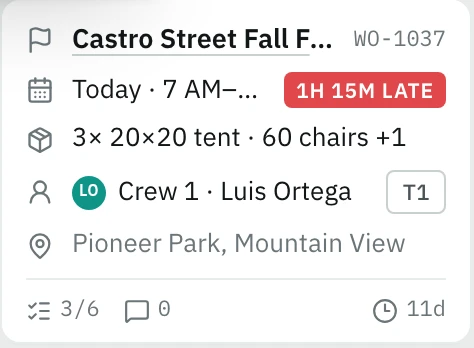
Work order WO-1037 on the sample app board: Castro Street Fall Fair today at 7 AM, three 20×20 tents and 60 chairs, Crew 1 with truck T1, Pioneer Park, flagged 1h 15m late
The same job as one work order

The goal is a working web app for a real process—not just a picture of the screens.

Workflow brief

Start With One Work Order, Not Your Whole Business

Pick one request your team handles often. Write down who starts it, what they must enter, who takes the next action, and what counts as finished. That is enough to make a useful first workflow brief. You can add a second process after you have checked the first one.

Copy a workflow brief for your work-order app

Build a web app for our service work orders. Staff should log in. A requester submits a job with a customer name, job description, location, and requested date. A dispatcher assigns a worker and changes the status from New to Assigned. The assigned worker can add a completion note and move it to Done. The business owner reviews that note and moves the job to Closed. Show each role the fields and actions it needs. Store each work order so the team can return to it. Start with this one process; do not add inventory or billing yet.

After pasting: Replace the example fields, roles, and status names with the way your business actually works. If a step depends on a condition—such as who approves an expensive job—state that condition in plain language.

Use this workflow brief to start building →
Request a setup form on the Halyard sample site: event date, setup window, venue, street address and city
The requester’s part on the Halyard sample site: date, setup window, venue and city

Build

How Do You Build and Publish Your First Business App?

Start by describing one workflow in HappySeeds. Review the first version of the web app, then tell it what to change: a field, a role, a status, or a step. Check those changes against your real process. When you are ready for others to use it, choose Deploy to publish the app and share its public link.

  1. 1Describe the job.

    Use the workflow brief above, or write your own people, fields, steps, and completion rule.

  2. 2Review and revise.

    Open the generated app and check a sample request from each role. Ask for changes in chat, then check the affected step again.

  3. 3Publish.

    Use Deploy for the public version. A temporary preview link is for review; it is not the published app you should hand to your team.

Start from a description or a template?

If you already know your process, describe it directly. If a template gives you a useful starting point, open it and adapt the fields, roles, and steps to your business. Either way, your own rules still need a review before you share the app.

Browse templates →

Do you need an app-store download?

HappySeeds builds web apps that people open through a link, including in a mobile browser. If your plan requires a native iOS or Android installation package or an app-store listing, choose a route built for that distribution.

Describe your first workflow →

Fit

When Does a Custom Business App Fit a Small Business Owner's Workflow?

HappySeeds fits a small business owner whose work orders, quotes, or approvals do not fit a standard tool. When those jobs are scattered across messages and spreadsheets, you can define one handoff with clear roles and records instead of piecing it together each time. Describe your process in everyday language, then shape a web app with a database and logins through conversation. Hosting is included, so you do not have to configure a server. You still decide the rules and check the result before your team relies on it.

1

Does a standard product already handle your process well?

YesOff-the-shelf business software
2

Do you need a deep rollout or custom engineering ownership?

YesLow-code development or a developer
ThenBuild it with HappySeedsDescribe the roles and steps, or start from your CSV or Excel file.

Choose the route that matches your starting point

Starting pointRoute to considerWhat to check first
Your process is already handled well by a standard productOff-the-shelf business softwareWhether its workflow and fields match the job you actually do
Your starting records are in a CSV or Excel fileUpload the file to HappySeeds to build an appWhether the rows and fields are the right starting point for the app you need
You know the process you need, but existing software does not fitAn AI custom app builder such as HappySeedsWhether you can describe the roles and rules, then review the generated web app
You need a deep system rollout or custom engineering ownershipLow-code development or a developerWho will build, maintain, and connect the system over time

If your team is already built around Microsoft 365 or Google Workspace and needs wide integration in that environment, compare its ecosystem tools. Check the exact connector you need for a particular CRM, or the trigger and monitoring you need from a general automation platform, before choosing any builder. HappySeeds' built-in integrations and supported connections are listed below.

Route note: Already have a CSV or Excel file? HappySeeds can use that upload as the starting point for an app. If your starting point is a process, describe its roles and steps here.

Records

Keep Each Work Order as a Record You Can Revisit

A submitted form needs to become a record your team can return to. HappySeeds can build a web app with a database that continues to receive form submissions. For your work-order app, specify which fields belong to a job, what staff should update, and how you want to find it later. Review the generated app with a sample request to make sure the record is saved and the next person can work from it.

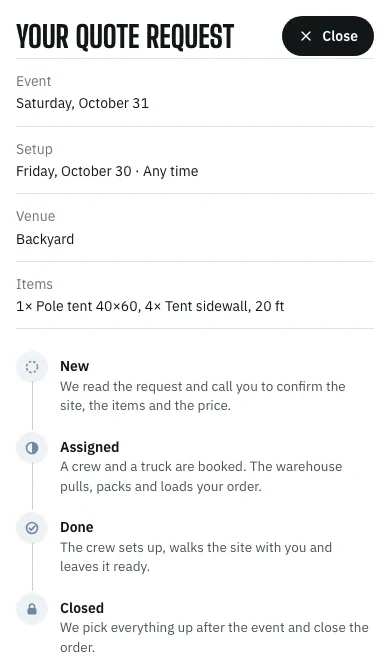
Quote request confirmation on a phone: event date, setup, venue, items and the four statuses New, Assigned, Done, Closed
The customer sends a request
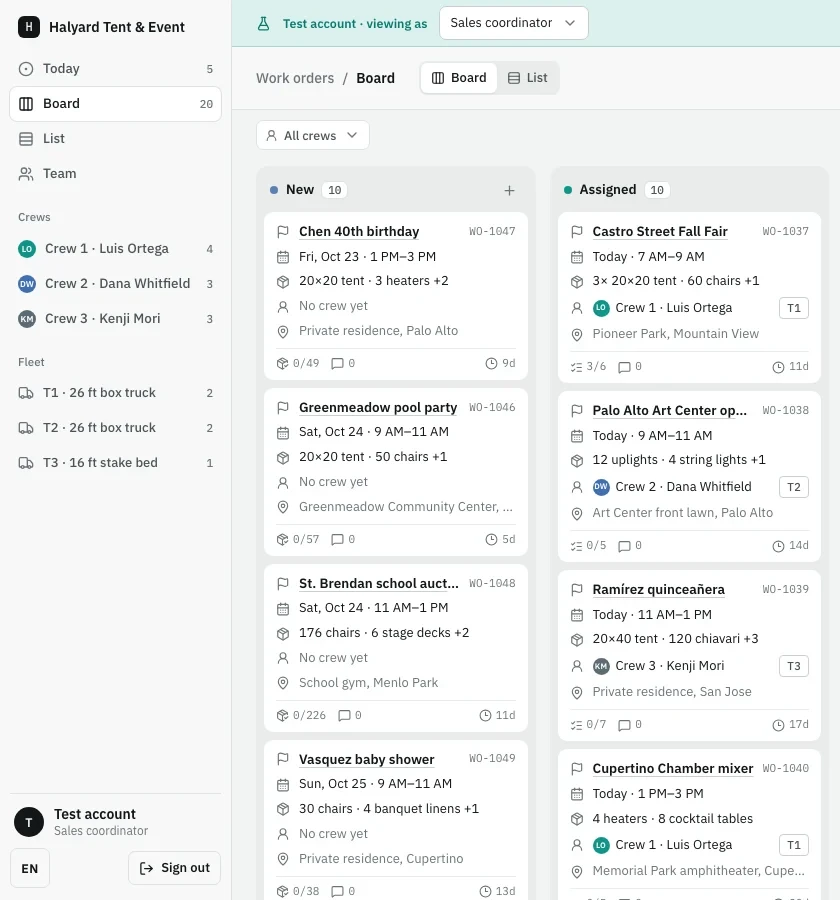
Staff board in the sample app: new work orders listed with date, items, venue and No crew yet, next to the crews and trucks a dispatcher can assign
It lands on the staff board as New

Can you export your app's data and code?

Data received by a HappySeeds app can be exported. On Lite and Pro, you can also export the generated code and sync it to GitHub. You retain the rights to the content you input. See current plan details to compare Free, Lite, and Pro.

  • App data exportData your app received
  • Code exportLite and Pro
  • GitHub syncLite and Pro

Staff

Give Staff a Clear Way to Submit and Update Work

Build the form around the information the next person actually needs. A requester can enter the job details; the assigned person can add the work note and update the status. Ask for the fields, actions, and status names that fit your workflow, then try the app in a desktop and mobile browser to see whether staff can complete their part.

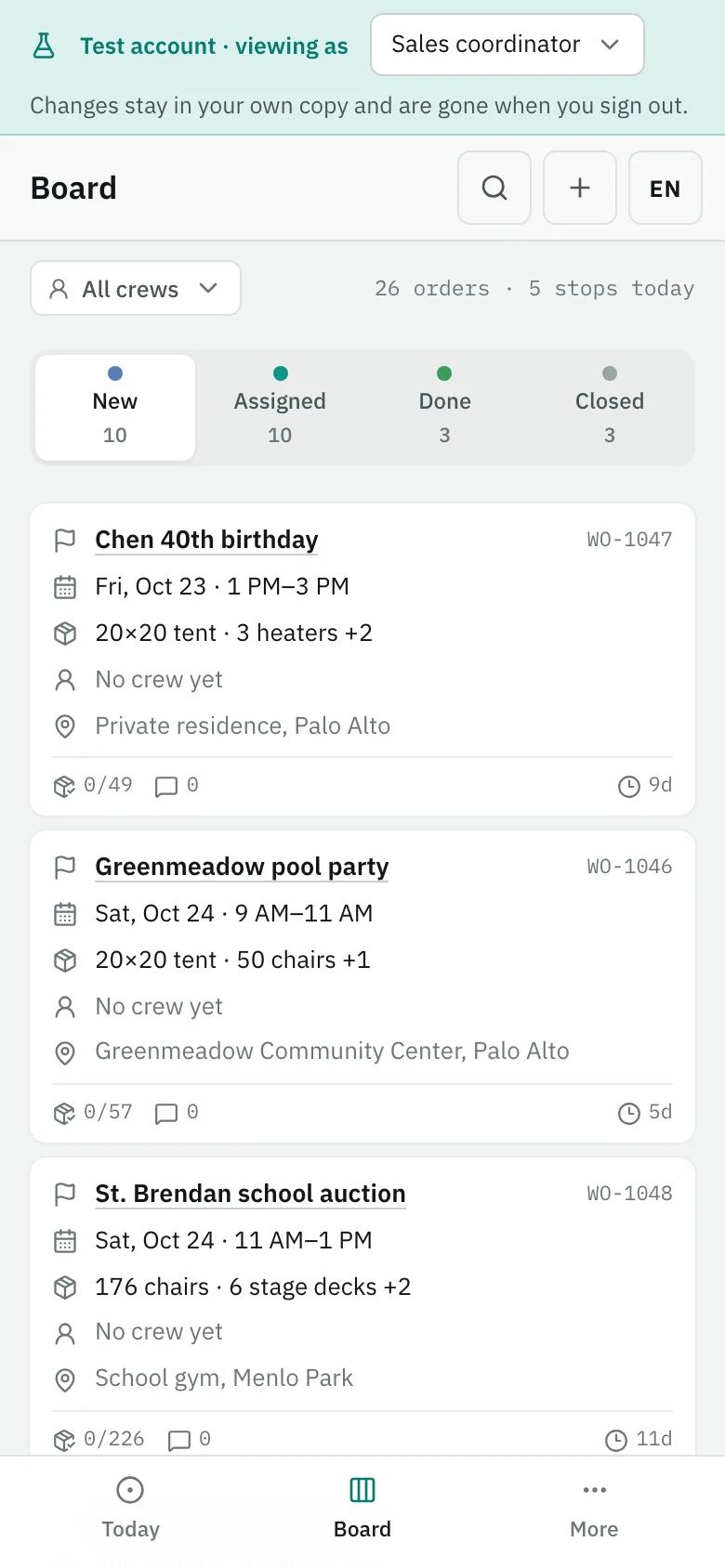
The work-order board on a phone: New, Assigned, Done and Closed tabs with the Chen 40th birthday and Greenmeadow pool party orders
Phone · the same board on site

An internal tool should make the next action obvious

An internal tool builder is useful when staff need to do work, not just read a page. In this example, the request form starts a work order and the task view lets the next person act on the same record. Keep the first version focused on those actions; add more only after the handoff works.

Rules

Define Quote and Approval Rules for Your Business App

Business rules belong in your workflow brief. For a quote, specify which inputs affect the calculation and which person reviews the result. For an employee task, specify who can request it, who decides, and what changes after approval. HappySeeds can help you build those steps into a web app; check the generated rule with realistic examples before using it for an actual quote or decision.

Quote form on the sample site: tents with day rates, one 40×60 pole tent selected, rental estimate $2,400, delivery and setup quoted after a site visit
Quote inputs on the sample site: each item has a day rate, the form shows a rental estimate, and staff confirm the price before booking

Make the conditions explicit

Instead of “approve large jobs,” write the threshold, the reviewer, and what should happen when the condition is met. If a form should reveal or skip a later question based on an earlier answer, describe that rule too. Try a case on each side of the condition before publishing.

What can the app connect to?

HappySeeds has built-in integrations for Stripe payments and Google sign-in; connect your own account or credentials by following the setup guidance. You can connect Calendly for scheduling and Resend or Brevo for email. For a work order assignment or an approval, you can add an email reminder to the person responsible by connecting Resend or Brevo. Specify the event and recipient in your workflow brief, and check the setup before publishing.

  • Stripe payments built in · setup
  • Google sign-in built in · setup
  • Calendly scheduling
  • Resend or Brevo email

Roles

Show Each Role the Work It Needs to Handle

The requester, dispatcher, worker, and business owner do not need the same actions. Define the roles in your workflow brief: who can add a request, assign a worker, move it to Done, and review it before moving it to Closed. HappySeeds supports role-based access in the apps you build, so different roles can see and edit different content. Check each role's view against the work it is meant to do.

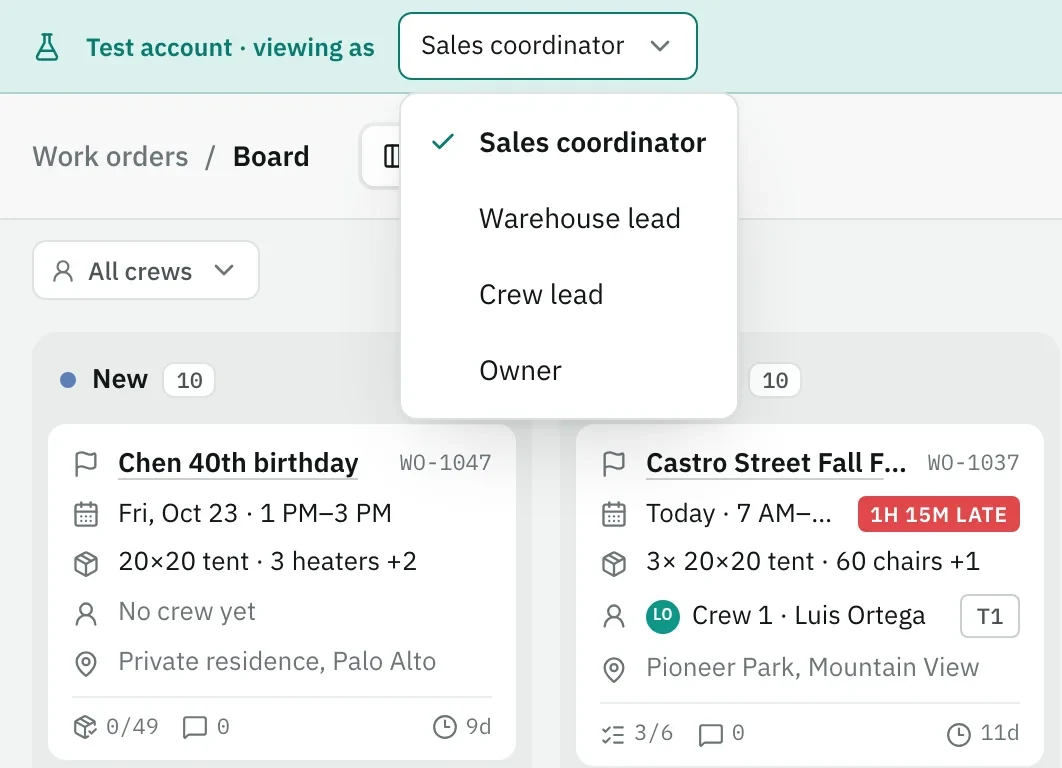
Sample app board with the test account role menu open: Sales coordinator, Warehouse lead, Crew lead, Owner
Roles on the sample site: the test account switches between Sales coordinator, Warehouse lead, Crew lead and Owner on the same board

A useful admin panel starts with responsibilities

An admin panel builder should help an owner or dispatcher handle the records they are responsible for. List the decisions that belong there—such as assigning a worker or checking a completed job—before adding controls. Keep the staff-facing actions clear as well.

Publish

Can You Publish a Business App for Your Staff for Free?

Yes. HappySeeds lets you publish a web app for real users on the free plan. Deploy creates a public version with a link you can share with staff; a temporary preview link is for checking work in progress. Use the published link only after you have checked the work-order handoff, and visit pricing to compare Lite and Pro benefits.

Preview
Temporary preview link

For checking work in progress while you review and revise.

Preview · temporaryNot for staff
Live · Free plan
Public link from Deploy

The published version you share with staff after the handoff checks out.

Public app linkCopy link

Build and publish your app →

Check

Check One Work Order Before You Share the App

Run one realistic job through the app before giving the link to your team. Use the same work order throughout the check so you can see whether each person can finish their part and whether the record stays understandable from start to close.

How a quote works on the sample site: you send it, we call you, crew sets up, we pick up and close the order
On the sample site one work order number follows the job from request to pickup; check each of these handoffs with one sample job
CheckTry this with one sample jobWhat to verify
SubmissionEnter the required job detailsThe request becomes a record with the fields you need
AssignmentOpen it as the dispatcher and assign a workerThe correct role can take the next action
ProgressAs assigned staff, add a work note and move the job to DoneDone appears on the same job record
Role viewOpen the job as each planned roleEach role can see and edit the intended content
CompletionAs owner, review the Done job and move it to ClosedClosed and the key notes remain on the same record

If any step does not match the way your business works, describe the correction in chat, review the changed step, and check the full handoff again before publishing.

Change

Change the Process, Then Deploy the Updated App

Your process can change after the first version is live. Return to the HappySeeds project and describe the next change, such as a new field, a different approval condition, or another step in the work order. Review what changed and retest the affected path. Then go back to Deploy: chat edits do not update the public app until you publish the new version.

  1. LiveVersion 1Staff use the public link
  2. ChatDescribe the change“Add a parts-used field to the completion note”
  3. ReviewRetest the pathWO-1037 again, as the crew lead and the owner
  4. DeployPublish againChat edits alone leave version 1 live
  5. LiveVersion 2Same public link, updated app

Add the next step only after the first one works

Once the work-order handoff is clear, add a related task or quote rule with the same level of detail: who starts it, who acts next, and how it is finished. Recheck the original path as well as the new one before you share the updated link.

Questions Before You Build

Can I create my own business app without coding?

Yes. Describe one business process in HappySeeds, review the generated web app, and refine it in chat. You still need to define the rules and check the steps your team will use.

How much does it cost to build an app for a business?

Cost depends on the route and scope: custom development on the work involved, subscription tools on plan and features, and AI builders on subscriptions or credits. HappySeeds lets you publish a web app for real users on the free plan; see current Lite and Pro benefits to compare credits, code export, and GitHub sync.

Can ChatGPT build me a business app?

A written chat answer alone is not a published app your staff can use. That app also needs logins, a database, hosting, and a shareable public link. HappySeeds lets you build, review, and publish that web app from your workflow brief.

Do I need to publish my business app in an app store?

No, if a web app opened through a link meets your needs. HappySeeds builds web apps you can publish and share; native app packages and app-store submissions require a different route.

Can staff log in and work on the same business process?

HappySeeds can build a web app with logins, a database, and role-based access. Define what each role should see and edit, then check the handoff with a sample record before sharing it.

Can I build an approval or quoting workflow?

Yes, as a custom web app. State the inputs, conditions, reviewer, and next action, then test examples on both sides of each condition.

Can I export the data or code from my app?

Data received by a HappySeeds app can be exported. Code export and GitHub sync are available on Lite and Pro. You retain the rights to the content you input.

Can my app connect to payments or email?

Yes. HappySeeds has built-in Stripe payments and Google sign-in integrations that need setup. You can connect Calendly for scheduling and Resend or Brevo for email. With Resend or Brevo configured, you can add an email reminder when a work order is assigned or an approval is made.

Will changes I make in chat appear in my published app?

Publish again with Deploy after you review the change. Chat edits alone do not update the live public version.

Build Your First Work Order App

Choose one process your team needs to run better. Write the first work order, the person who handles it, and what finished looks like. HappySeeds can turn that workflow brief into a web app you can review, improve, and publish for real users on the free plan.

Explore more ways to build with AI → Start with your workflow →