A client portal should answer the questions that keep returning to your inbox: Which brief is current? What is waiting on us? Where did the approved file go? If a client still has to ask after signing in, you have moved the confusion, not solved it.
This guide shows how to create a client portal for a small service business, using a fictional design studio with two clients as an example. It covers screens, records, access rules, and release checks, not a claimed hands-on test of your configuration.
HappySeeds product references were checked on October 10, 2026.
Decide What Clients Need to See
What is a client portal here? A private Web workspace where clients complete service tasks without entering the team's internal project system. For the studio, that means submitting a request, checking status, finding an approved deliverable, and asking a question.
Start with four views: dashboard and next action; intake form; project status; and project files and messages. Clients need an account of their work, not every staff discussion behind it.
Picture a client opening the portal on a phone after a revision email. Can they find the approved file and tell who owes the next response? If clients need only a narrow project window, see the project management client-view guide; here, we are building a dedicated workflow.
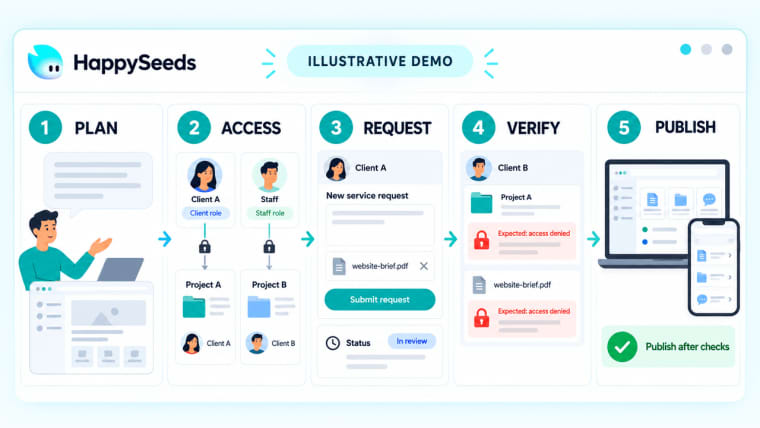
Map Users, Data, and Access Rules
Write the records before asking for screens: Client, User, Project, Request, File, and Message. Give each project a client_id; attach requests, files, and messages to projects. Give users a role and explicit client or project membership. Keep internal notes separate.
The access rule is stricter than "show the right menu." Clients may use their own records, but changing a URL or ID must not reveal another client's file. Staff see assigned projects; owners manage memberships. OWASP's authorization guidance covers default-deny rules and permission checks on every request, including files.
HappySeeds provides sign-in configuration and database-backed records. Build role-specific views and client-scoped records and files, then test the isolation rule. Login proves identity, not that client A cannot open client B's work.
Put this in the brief: "Every read, download, upload, comment, and status change checks the user's client membership. Unauthorized requests return no item." Prepare client, staff, and owner test accounts.
There is a common trap here: a page filtered to "my projects" can look private while the underlying record remains open to anyone with its ID. Treat the visible list and the record request as two separate tests. The same goes for files. A hidden download button is not a locked file.
Build the Intake and Project Status Views
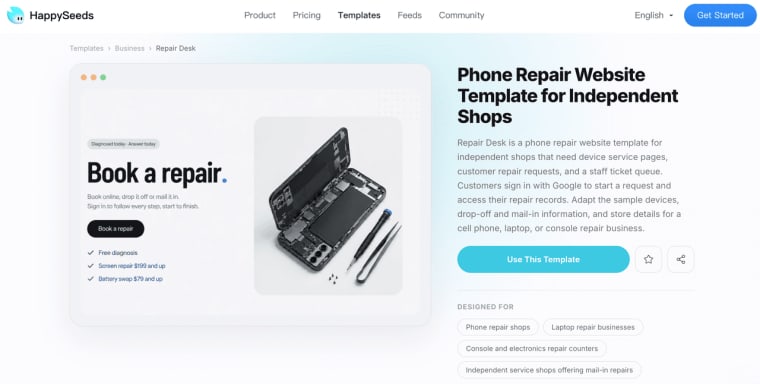
To create your own client portal in HappySeeds, start with a complete request path. The Repair Desk template is one of several client portal examples for intake and staff queues. This image is a public template preview, not evidence of private permissions.
Build a Web portal for a design studio. Client users sign in, submit a design request, see only their own projects and files, and ask questions on a project. Staff see only assigned projects and can change a request from New to In progress, Waiting on client, or Delivered. Owners manage client memberships. Store the requester, project, status, next action, due date, and last update. Keep staff notes private. Show an empty state for a new client and an error state when a save fails. Do not add payments or public signup.
Build intake first: project, request title, description, due-date preference, and optional attachment. Save the request under the signed-in client's account and show a receipt. On the project page, show status, last update, next action, and approved files, not internal estimates.
"Waiting on client: approve the revised homepage by Thursday" helps more than an invented progress percentage. Test with two fictional clients before polishing.
Give staff one simple update action: change status, write a client-visible note, and choose the next owner. Save the time and person making the change. If a project is paused, show "Paused" and the reason clients are allowed to see, rather than leaving the last active status on screen. That small distinction prevents a portal from confidently displaying stale progress.
Add a Shared File and Message Workflow
Attach each file to a project; record uploader, date, purpose, and draft or approved status. Do not silently overwrite an approved version.
In HappySeeds, specify client-facing upload and download behavior in the app. The builder's Assets panel is for project resources, not a private client file library. Apply client membership checks to file access and test direct download URLs. File-upload controls should cover type, size, storage, and authorization. If direct links cannot be restricted, use a separately permissioned file service.
For messages, begin with a project-linked question, response, timestamp, and unresolved/resolved state. If in-app messaging is untested, use a project note plus existing email; do not promise automatic notifications. Decide which channel holds the authoritative record.
Can staff answer "Which logo is approved?" from the project history without searching an inbox? If not, the workflow is unfinished.
Test the Portal as a Client
Use fictional data and separate browser sessions for client A, client B, staff, and owner:
| Action | Expected result |
| A submits a request | One saved request appears under A, with a receipt and next step. |
| B opens A's request URL or guessed ID | No request data is returned. |
| B opens A's file link | Download is denied, even with the direct URL. |
| Assigned staff updates A's status | A sees the new status; B sees nothing. |
| Owner removes a client member | That person loses access to the project and its files. |
| Upload or save fails | The user sees an honest error and can retry without a duplicate. |
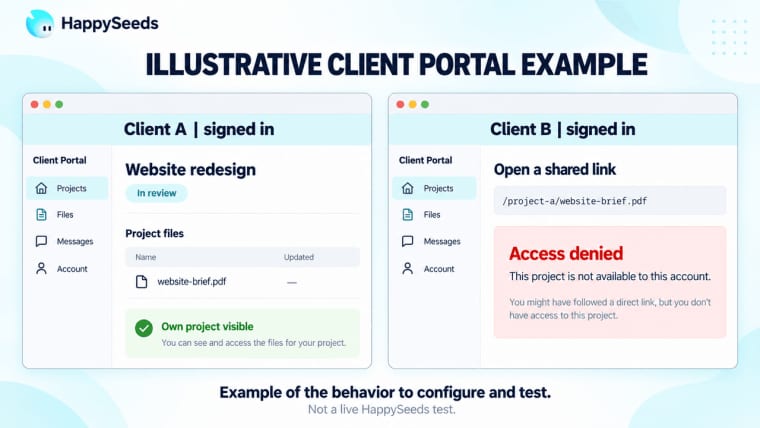
Run checks on the published URL, not just Preview. Try phone width, keyboard navigation, labels, and readable errors; W3C's preliminary checks are a starting point, not certification. Let a colleague complete a request without coaching.
Record pass, fail, or not tested, with the account used. Cross-client URL and file checks are the release blockers.
Capture three proof images for the handoff: a client's project view, the staff update that changes it, and the denied-access result from the second client account. Crop out fictional names if you share the images publicly. These are stronger evidence of the portal you built than a generic builder screenshot, but they need to come from the actual published app.
Publish and Hand Over Access
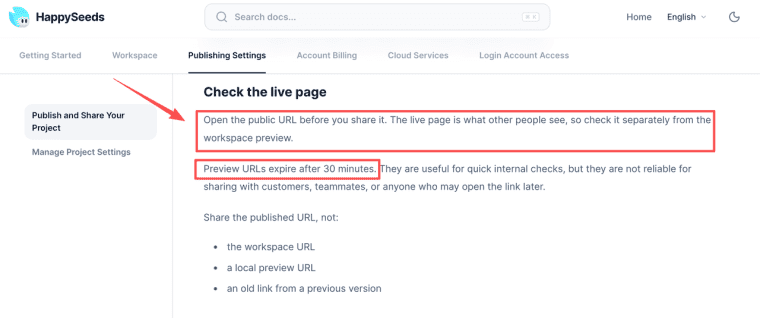
Once checks pass, publish and open the live address. HappySeeds distinguishes short-lived Preview from the published project URL; Preview expires after 30 minutes. After changes, republish and retest. Leave showcase and remix visibility off for client work.
Hand over the live URL, owner account, membership list, field-and-status map, and a one-page operating note. Name who invites clients, answers questions, corrects uploads, and revokes access. The business owner should control external credentials and recovery.
Invite one client first. Ask them to submit a request or find an approved file. If they need a guided call, fix the portal before expanding.
Limits of a Custom Client Portal
A custom portal brings maintenance: lost access, misfiled uploads, retention decisions, and staff turnover. Highly sensitive or regulated records need specialist review. HappySeeds can support the Web app, authentication, records, and configured file access; permissions, backups, and support remain your responsibility.
If you need invoicing, e-signatures, or complex approvals on day one, check the client portal software shortlist before building.
Make the First Client Task the Release Test
The first client should be able to sign in, submit a request, see the next step, find the right file, and know who responds. Permissions and handoff make that experience dependable next month.
Explore More Topics:
FAQ
Can clients use a portal without creating an account?
A low-risk view might use a time-limited link. A continuing workspace with private files needs reliable identity and revocation. Do not use one permanent link for everyone.
How should old client files move into a new portal?
Move active, approved files first. Inventory owner and version, import a sample, and verify permissions and integrity. Keep the old location read-only during reconciliation.
Who should own the portal after an agency builds it?
The service business should control the production project, domain, storage, credentials, and billing. Give the agency scoped maintenance access and an agreed exit process.
What happens to client access when a project ends?
Choose read-only access for an agreed period, export then removal, or a continuing account. Tell clients before closure and check former contacts cannot see new work.
Can a portal serve several client brands separately?
Yes, if branding and access boundaries are separate. Decide whether brands need distinct domains or just headers. Test each with a separate client account; a logo does not create data isolation.