AI Image to Video Generator for Product, Shop and Social Clips

Turn your photos into short videos for products, shops and social posts. Upload a photo, say how it should move — or just what the video is for — and HappySeeds writes the motion prompt and makes the clip.

Add photo

Not sure what to write? Say what the video is for, and HappySeeds will write the prompt or suggest a few directions.

Have a reference? Upload a video or paste a TikTok, YouTube, Instagram or X link, and tell us what to change.

Upload video

Start free with 30 credits. No credit card needed.

Image to Video AI Examples: From One Photo to a Short Video

Two videos made with HappySeeds, each from a single photo. For each one you can see the photo, what we asked for, the prompt HappySeeds wrote and the video we got.

Earrings on a black glove (October 11, 2026)
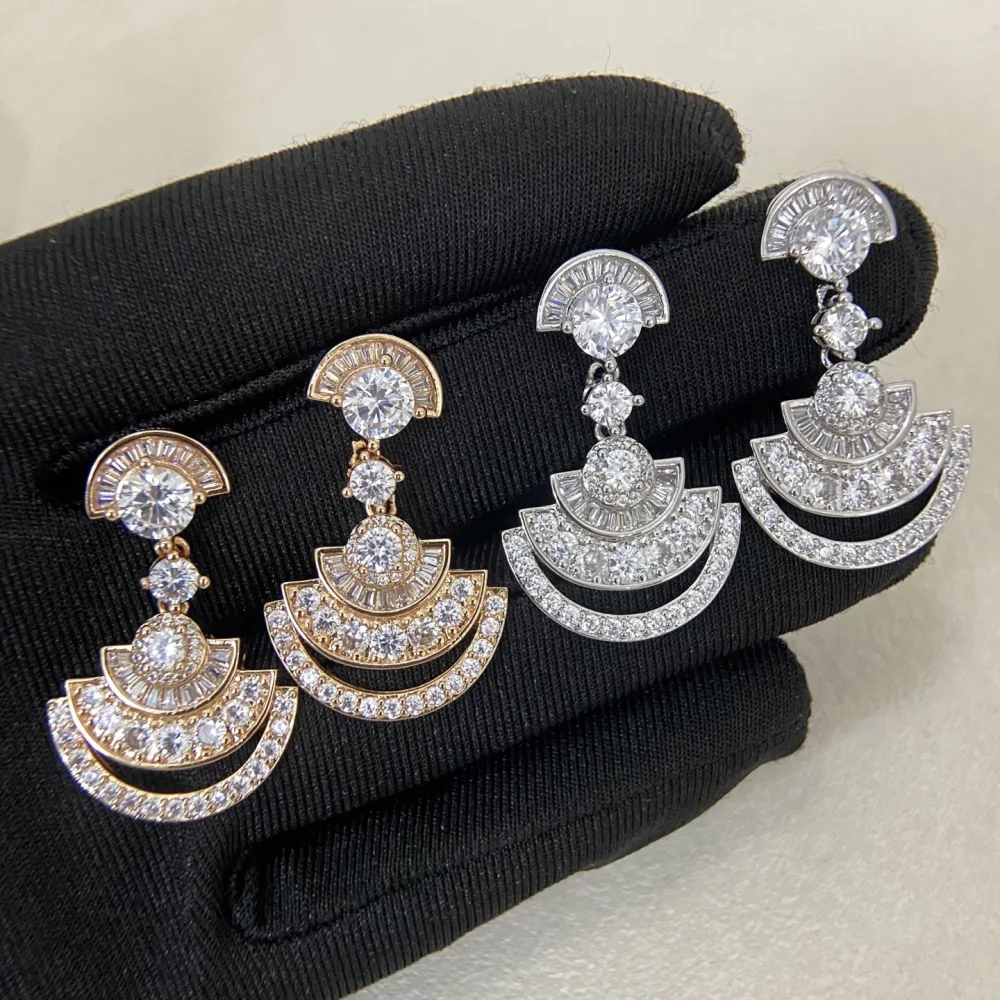
Two pairs of fan-shaped earrings, rose gold and silver, resting on a black glove
The photo
Made with HappySeeds
What we got
The photoTwo pairs of fan-shaped earrings, rose gold and silver, resting on a black glove.
What we asked for (excerpt)"… Slow camera push-in, soft light. Keep the shape, colors and stones exactly as in the photo." We also asked for a 5-second vertical clip.
The prompt HappySeeds wrote (excerpt)"[0–2s] Wide establishing view … The camera is stationary for one beat, drawing the viewer into the symmetry of the two pairs. [2–5s] The camera begins a slow, steady push-in, gliding forward smoothly toward the earrings."
What we gotA 5-second vertical clip with a slow push-in toward both pairs. The fan shapes and the rose-gold and silver tones stay recognizable.

Our request called the black glove “velvet”, so the prompt HappySeeds wrote uses the same word.

See the request

Two pairs of fan-shaped earrings, rose gold and silver, on black velvet. Slow camera push-in, soft light. Keep the shape, colors and stones exactly as in the photo. Create one 5-second video in 9:16 … No music, voiceover, subtitles or extra scenes.

See the full prompt

One continuous take, no cuts: the camera performs a slow, smooth push-in toward the two pairs of fan-shaped drop earrings shown in Image 1. The earrings in Image 1 — rose gold pair on the left and silver/white-gold pair on the right — rest side by side on matte black velvet fabric. Each earring consists of three stacked semi-circular fan tiers fully pavé-set with round brilliant-cut clear stones, topped by a half-moon halo with a central round stone and baguette accents; the rose gold pair keeps its warm rose-gold metal tone and the silver pair keeps its cool white-metal tone exactly as in Image 1. The shapes, tier arrangement, stone layout and colours of both pairs stay consistent with Image 1 throughout. [0–2s] Wide establishing view: both earring pairs centred on the black velvet, soft diffused studio light creating even, gentle sparkle from the clear stones — no harsh reflections, no blown highlights. The camera is stationary for one beat, drawing the viewer into the symmetry of the two pairs. [2–5s] The camera begins a slow, steady push-in, gliding forward smoothly toward the earrings. As it moves closer, the individual stone facets and the curved fan tiers become more defined; the warm rose-gold tones on the left and cool silver tones on the right grow more vivid. The black velvet fills the background completely. The camera continues forward until the full width of both pairs occupies most of the frame, the tiered fans and their stones large and clear. Lighting: soft, diffused studio light from slightly above; no harsh shadows, no coloured gels; the velvet surface stays matte and absorbs light, making the stone sparkle stand out. No music, no voice-over, no on-screen text. Silence throughout.
A restaurant interior (October 14, 2026)

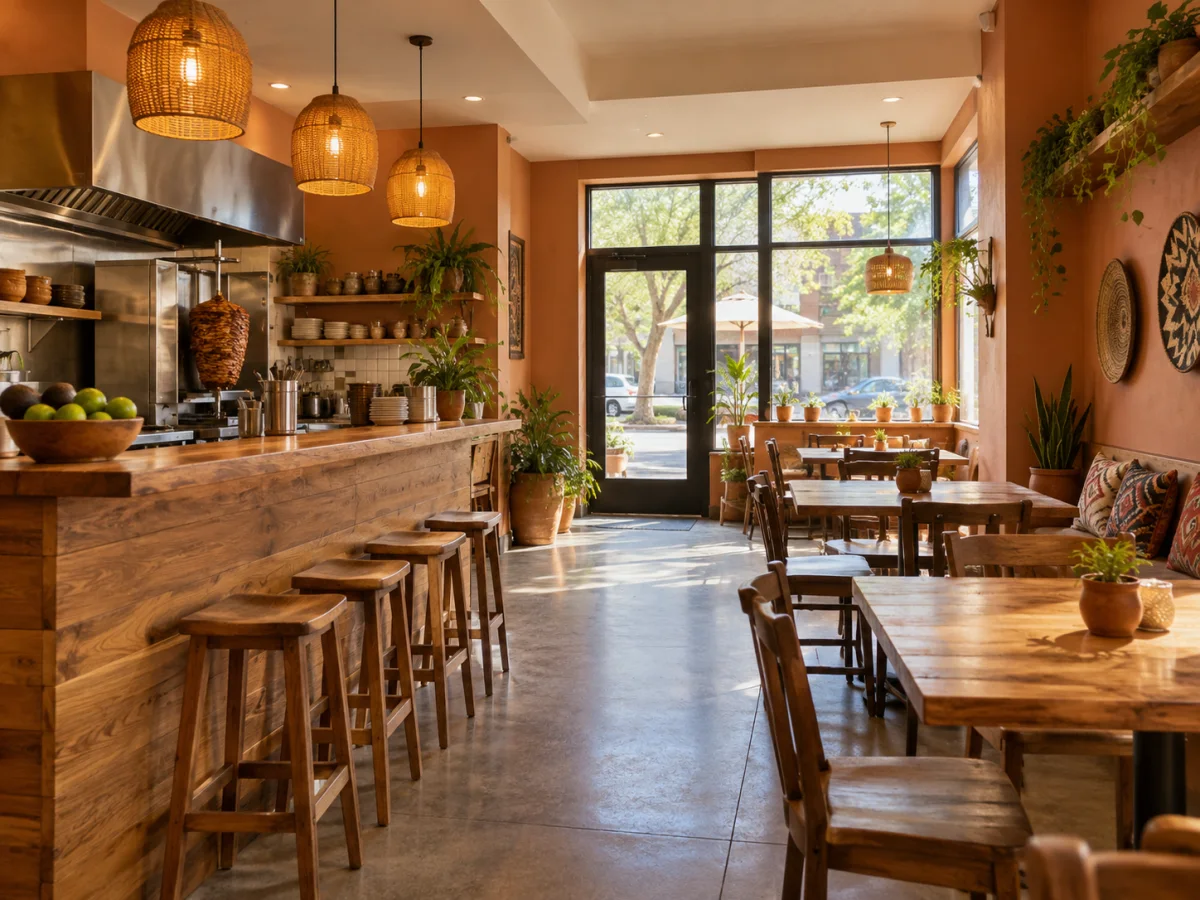
Sample photo made with AI of a restaurant with a wooden counter and stools on the left, tables on the right and terracotta walls
The photo
Made with HappySeeds
What we got
The photoA sample photo made with AI: a restaurant with a wooden counter and stools on the left, tables on the right, terracotta walls, woven pendant lamps, a kitchen at the far left and a glass door at the back. No people or signs.
What we asked for (excerpt)"Slowly move the camera forward along the wooden counter on the left, and make the lighting slightly warmer. Keep the wood counter on the left, tables on the right, terracotta walls, woven pendant lamps and the rear window recognisable." We also asked for a 5-second vertical clip.
The prompt HappySeeds wrote (excerpt)"[0–5s | slow forward dolly, warm light] The camera moves slowly and steadily forward along the wooden counter on the left, maintaining a low, eye-level angle."
What we gotA 5-second vertical clip that moves slowly along the counter toward the glass door at the back, with the stools, tables, terracotta walls and a woven lamp in view and daylight coming through the door.
See the request

Use the uploaded restaurant interior photo. Slowly move the camera forward along the wooden counter on the left, and make the lighting slightly warmer. Keep the wood counter on the left, tables on the right, terracotta walls, woven pendant lamps and the rear window recognisable. Generate one continuous 5-second clip, 9:16, Wan 3.0, 480p. No people, text, music or extra scenes. …

See the full prompt

Animate Image 1 — the restaurant interior. [0–5s | slow forward dolly, warm light] The camera moves slowly and steadily forward along the wooden counter on the left, maintaining a low, eye-level angle. The wooden bar counter with its bar stools stays anchored on the left edge of frame throughout; the dining tables and chairs on the right remain visible; the terracotta-orange walls, woven wicker pendant lamps overhead, and the rear glass-door window with daylight streaming through are all kept recognisable at all times. Lighting shifts to be slightly warmer than in Image 1 — a gentle amber-golden cast over the wood surfaces and walls, as if late-afternoon sunlight has deepened. No flicker or abrupt lighting change. No people, no text overlays, no added music, no cuts, no new scenes or objects. One continuous, smooth shot from the same vantage point moving forward. Everything from Image 1 is preserved — wooden counter, bar stools, terracotta walls, woven pendant lamps, dining tables, plants, rear window — with no elements added or removed.

Before you post a clip of your own, run the checks in Pick a photo that animates well.

Start From a Template

Pick a template close to your photo, then swap in your own photo and details.

How to Turn an Image into a Video

To turn an image into a video, upload your photo, describe what should move and how the camera moves — or just say what the video is for — then choose a format and generate. Watch the whole clip before you post it.

  1. 1. Add one photo, several photos or an ending image

    Start with the photo you want to bring to life. Have several photos? Upload them together and say the order you want; HappySeeds combines them into one video. You can also add a second image as the last frame, and the video moves from your first photo toward it. Check how the clip gets from one image to the other before you use it.

  2. 2. Say how it should move, or what the video is for

    Describe what moves in the scene and what the camera does, such as "steam rises from the cup as the camera slowly moves closer." Rather not write it? Say what the video is for — "a teaser for our weekend sale" — and HappySeeds writes a detailed motion prompt or suggests a few directions to choose from. You can edit the prompt before you generate. For ideas, see prompts by photo type.

  3. 3. Choose the format, length and model

    Pick vertical 9:16 for TikTok, Reels and Shorts, square 1:1 for feeds, landscape 16:9 for YouTube and websites, or 4:3, 3:4 and 21:9. Choose how long the video should be, from a short clip to a longer video. Then pick a model; see which models each plan includes.

  4. 4. Generate, then watch the whole clip

    Generate the video and watch it from start to finish next to your photo. If something is off, see what to fix and how. Download it when it's ready to post.

Image to Video Prompts by Photo Type

A good image to video prompt describes motion, not the picture. Your photo already shows what's in the scene, so use the prompt to say what moves, how the camera moves and what should stay still. Start with one main movement; you can add more once the first version looks right.

Copy one as a starting point and edit it to fit your photo.

Photo typeWhat can moveWhat the camera doesPrompt to start from
Product photoLight moving across the surface; the product itself stays stillA slow push-in or a slow arc around it

"Slow push-in toward the product. Soft light glides across its surface. The product stays still."

Shop, café or restaurantPendant lights, steam from the kitchen, leaves outside the windowA slow move forward through the room

"The camera moves slowly forward along the counter. Warm light, a little steam rising from the kitchen."

Food and drinksSteam, a pour, a drizzleA close push-in or a slow circle

"Steam rises from the bowl as the camera slowly circles it."

Rooms and sceneryClouds, water, changing lightA slow pan or a gentle push-in

"Clouds drift across the sky as the camera pans slowly to the right."

PortraitA soft smile, a blink, hair moving in a light breezeA still camera or a slow push-in

"Still camera. She smiles softly and blinks while a light breeze moves her hair."

Illustration or artworkThings in the picture: falling petals, twinkling stars, drifting cloudsA gentle push-in

"Petals drift down and the stars twinkle as the camera pushes in slowly."

Want only one thing to move?

Name that one thing and say the camera stays still, such as "Still camera. Only the steam moves." Describe what you want to see rather than what you don't want. The camera can still drift or zoom a little, so check the framing; if it moves anyway, ask for even less motion and generate again, or try another model.

Let HappySeeds write it

Say what the video is for and where you'll post it, such as "a 10-second vertical clip for our new menu." HappySeeds writes a detailed motion prompt or suggests a few directions. Pick one, edit it if you like, then generate.

What You Can Make From a Photo

Most photos you already have can become a short video: a product shot for your store, a photo of your shop or a dish, a room or a view, a portrait, or a drawing. Here's what each kind of photo is good for.

Product photos

Listing videos, launch teasers and social ads from the photos already in your store. For a full product video with several scenes, voiceover and captions, use our AI product video generator. To test several versions of an ad, try the video ad maker.

Shops, cafés and restaurants

A clip of your room, your counter or a dish for an offer, a new menu or an opening day. Add your offer, dates and address as captions, using the details you provide.

Make a video ad for your offer →

Rooms, places and scenery

Short clips for venue pages, travel posts and video backgrounds, with clouds, water or light moving.

People, pets and artwork

Birthday greetings, profile clips and illustrations that move. Use photos you took or have permission to use, including permission from the people in them.

More videos made with HappySeeds

Short videos made with HappySeeds for products, local businesses and social posts. Open one to see the prompt behind it.

Products

Made with HappySeeds
Sneaker ad
Made with HappySeeds
Crystal necklace try-on

Cafés and salons

Made with HappySeeds
Dessert at a café
Made with HappySeeds
Hair color at a salon

Pets and greetings

Made with HappySeeds
Dancing cat
Made with HappySeeds
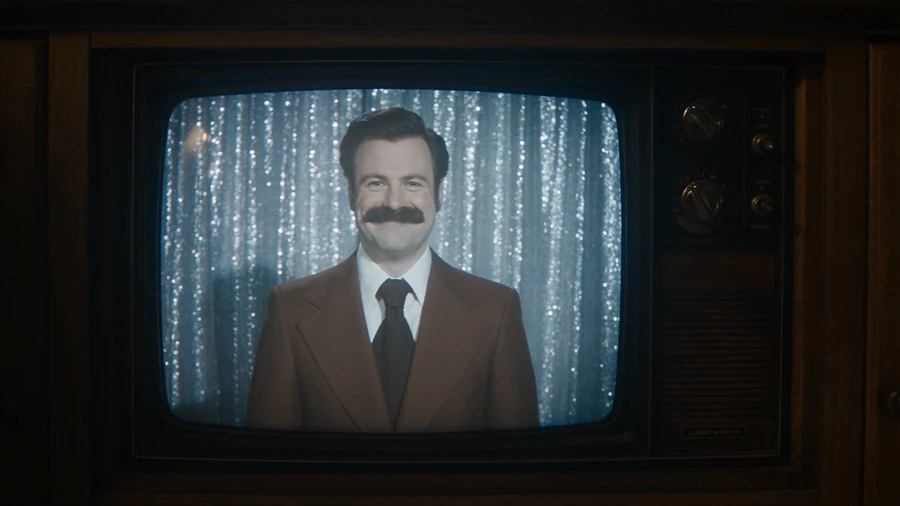
Retro TV birthday greeting

Turn your own photo into a video ↑

Pick a Photo That Animates Well, Then Check the Clip

Image to video works best from a sharp, well-lit photo with one clear subject. As the AI adds motion, it redraws the scene, so faces, small text, logos and fine details can change. Compare the clip with your photo before you post it.

Choose a photo that animates well

  • Sharp and well lit, with the main subject fully in the picture.
  • Some space around the subject if you want the camera to move in or around it.
  • The same shape as your video if you can, such as a tall photo for a vertical video, so less of the scene gets cut off.
  • A photo you took or have the rights to use.

What to check in the whole clip

  • The subject stays in frame from start to end.
  • The face and distinctive marks, such as birthmarks, still match the photo.
  • Text, labels and logos are still correct.
  • Shapes and colors match your photo.
  • The camera did what you asked, such as staying still.
  • Nothing important was cut off by the format.

Selling a product? See how to check product details in a product video.

Trim it, redo it, or film that shot yourself

What you seeWhat to do
A weak second at the start or endAsk HappySeeds to trim the clip and keep the good part.
The camera moved when it should have stayed stillAsk for less motion, such as "Still camera. Only the steam moves.", and generate again.
A face, a logo or a product detail changedDon't cover it with a caption. Ask for a simpler movement or try another model with the same photo, then generate again and compare.
A detail has to be exactly right, like the label on your packagingFilm that shot yourself and upload the clip; HappySeeds can join it with the generated scenes into one video.
You need sound, captions or a longer videoAsk HappySeeds to add music, a voiceover or captions, or to join several clips into one longer video, then download it all together.

Image to Video vs Text to Video: Which Should You Use?

Image to video AI turns a still photo into a short video by adding motion to what's already in the picture: the subject, the setting and the light come from your photo. Text to video builds the whole scene from a written description.

  • Use image to video when the look has to be yours: your product, your shop, your own photo or artwork.
  • Use text to video when you don't have a picture yet or want a scene that doesn't exist. Make a video from text
  • Want several photos shown one after another with music and no new motion? That's a slideshow, and a slideshow editor does it well. Image to video adds movement inside each photo, and HappySeeds can combine several animated photos into one video.

Is Image to Video Free? What You Get Free and When You Upgrade

Yes, you can start free. Sign up without a credit card and get 30 free credits, plus limited-time bonus credits for new users, and earn more by signing in daily. The same credits work for videos, websites and apps; longer and higher-resolution videos use more of them.

FreeLitePro
Price$0$12.90 a monthFrom $19.90 a month
Credits30 on first sign-in100 a month200 a month, with larger plans available
Video resolutionUp to 480pUp to 720p HDUp to 1080p / 4K
Video modelsWan 3.0, Wan 3.0 Prime, MiniMax H3Adds every Seedance versionAdds every Seedance version
Watermark-free downloads—YesYes

Prices as of October 19, 2026. See pricing for current plans.

Why Sellers, Shops and Creators Turn Photos into Videos With HappySeeds

HappySeeds is a chat-based AI video tool for online sellers, local shops and creators who already have photos and want short videos from them, without writing detailed prompts or learning video editing.

Which kind of image to video tool fits your job?

If you need…A good fit
Precise control of a timeline, text and timing on footage you already haveA video editor with AI features
A character to copy a specific dance or moveA motion-template or motion-reference tool
A photo that talks and lip-syncs a scriptA talking-photo or avatar tool
Every setting of many video models side by sideA multi-model video platform
Several photos shown in order with music, no new motionA slideshow maker
Short videos from the photos you have, with help writing the motion, a few directions to pick from, and voiceover, music and captions in the same chatHappySeeds

If you sell products online

Instead of reshooting each product on video, start from the photo already in your store listing. Say how it should move and HappySeeds writes the detailed prompt, so you don't need to learn prompt wording first. Check the product's colors and details against your photo before you post.

Make a product video →

If you run a shop, café or restaurant

A short post doesn't need a videographer or editing skills. Describe the clip in a sentence, pick one of the directions HappySeeds suggests, and adjust it in the same chat.

Make a video ad for your offer →

If you post every week

When you need new clips every week, writing a detailed prompt for each one takes time. Tell HappySeeds what the post is for, let it draft the prompt and a few directions, and check each clip before you post.

See the four steps →

Image to Video FAQ

How do I turn a photo into a video with AI?

Upload the photo, describe what should move and how the camera moves, or just say what the video is for, then choose a format and generate. HappySeeds can write the motion prompt for you.

Is there a free AI image to video generator?

Yes. You can start free with HappySeeds: sign up without a credit card and get 30 free credits, plus limited-time bonus credits for new users. Paid plans add higher resolution, every Seedance model and watermark-free downloads.

Do I need to write a prompt?

No. Upload the photo and say what the video is for. HappySeeds writes a detailed motion prompt or suggests a few directions, and you can edit it before you generate.

Can I turn several photos into one video?

Yes. Upload the photos together and say the order and what should move in each; HappySeeds combines them into one video.

Can I choose how the video ends?

Yes. Add a second image as the last frame, and the video moves from your first photo toward it. Watch how the clip gets from one image to the other before you use it.

Will the video look exactly like my photo?

It starts from your photo, but the AI redraws the scene as it moves, so faces, small text, logos and fine details can change. Watch the whole clip, compare it with your photo, and if something important changed, try a simpler movement or another model and generate again.

Can I animate a photo of a person?

Yes, with simple movements such as a smile, a blink or hair moving in the wind. Use photos you have permission to use, and check the face closely. HappySeeds can also make simple talking videos, but for a photo that talks through a long script, a talking-photo tool is a better fit.

How long can the video be?

You pick the length before you generate. A few seconds is often enough for a listing or a social clip; for a longer video, say how long it should be and HappySeeds makes it as one video.

Which AI models can I use?

Seedance, Wan 3.0, Wan 3.0 Prime and MiniMax H3. Wan 3.0, Wan 3.0 Prime and MiniMax H3 are available on the free plan; Lite and Pro add every Seedance version. Results vary from photo to photo, so if a detail matters, try the same photo with another model and compare.

Can I add music, a voiceover or captions?

Yes. Ask HappySeeds to add music, a voiceover or captions, and they download together with the video.

Can I edit the video after it's made?

Yes, for quick changes: trim it, join clips, change the voiceover, music or captions, or describe a new version and generate again. It isn't a full video editing suite; if a detail must be exact, film that shot and join it with the generated scenes.

Can I use the videos commercially?

Yes. Videos you make with HappySeeds can be used commercially. Use photos you own or have permission to use.

Turn Your First Photo into a Video

Upload a photo and see it move. Start free with 30 credits, no credit card needed.

Generate video →