Hi guys, I'm Nora. An app launch page can explain a feature in text; a short clip can show the change in motion. To keep the clip true to the release, choose a moment worth showing, build it with Pika in ChatGPT, and check the export where visitors will see it.
What Should One Launch Clip Communicate?
A good short video answers two questions: what changed, and what can a visitor do now? Pick the single moment that makes the update easiest to grasp. Name the app, state what is newly available, and clearly point visitors toward the primary action. Keep the clip focused on this one update; leave supporting details in the page copy.
Make the Clip with Pika in ChatGPT
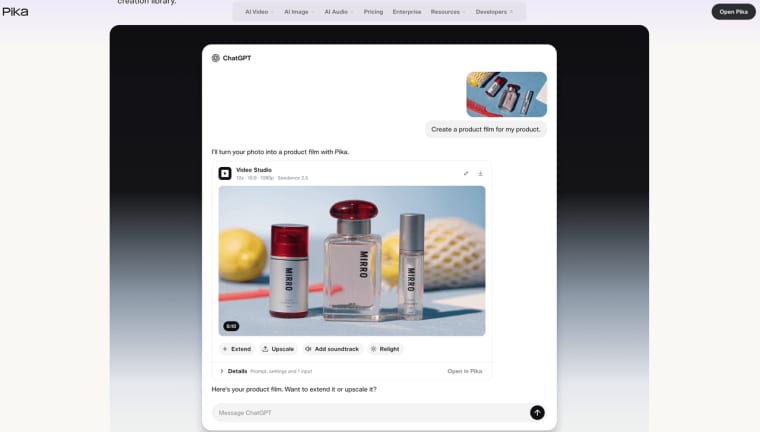
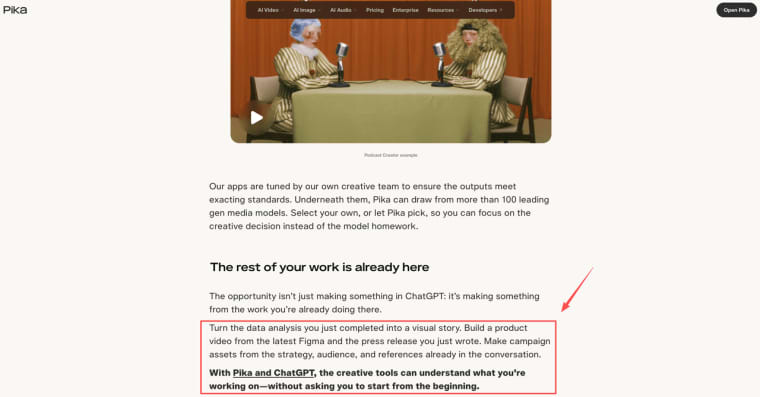
Pika's ChatGPT plugin brings video, image, and audio tools into ChatGPT. Install it, sign in to or create a Pika account, authorize it, then invoke it in chat. Generations use Pika credits, with an estimated cost shown first. The timeline can adjust timing, regenerate clips, and add transitions, effects, or sound.
Prepare the App Message and Visual Brief
Write an app launch video brief before generating:
- Audience and release: who the app serves and what changed.
- Message: one new job or ability.
- Visual: approved footage or a clearly illustrative metaphor.
- Style and limits: brand cues and what must not appear.
- Primary action: the single thing you want visitors to do on the page.
For example, an appointment app with a waitlist could say, "Fill an opening when a booking changes." Use an accurate app screen only if you have one. Do not ask AI to invent interface labels, testimonials, or product claims. Pika's launch announcement mentions reference photos and clips from a Pika library; check the selected app before assuming it accepts a specific upload.
Generate and Revise One Short Clip
In ChatGPT, choose a Pika video app and describe one action, camera view, visual style, and movement. Pika's ChatGPT page shows a timeline for adjusting timing, regenerating clips, and adding transitions, effects, and music. It also describes Video Studio as making clips up to 30 seconds, including multi-shot videos. Choose from the duration, aspect ratio, and reference options shown in the selected app; available controls vary by app and model.
Review the opening, middle, and final frame. If the action or product looks wrong, revise one thing at a time. Use an approved screen capture if exact UI matters and the app accepts it; add exact copy outside the generated image. Keep the version that matches the announcement.
Check the Video Before It Goes on the Website
Have the product owner check the app name, feature, date, and next step against the release page. Look for warped text, changing logos, extra buttons, inconsistent screens, and motion that obscures the action. Watch on a phone and desktop, with sound on and muted.
Confirm permission for every uploaded screen, photo, logo, face, voice, music track, and effect. Check the plan and model terms; a commercial-use license does not clear rights to third-party material. Replace misleading scenes with a real screen or label them illustrative. Date the approved export so later edits do not replace it unnoticed.
Where Should the Clip Sit on the Launch Page?
Place the video after the headline and one-sentence promise, with the main call-to-action directly below it. Visitors first get context, then see the motion, and can act without scrolling back up. Keep feature and availability details in the surrounding page text.
Video placement checklist: show a still poster; do not autoplay with sound; keep play controls visible; check the crop at phone width; confirm the downloaded file plays correctly on the page. Add accurate synchronized captions for any speech or meaningful sounds. If a silent version carries information not already explained in the text, provide an equivalent text alternative or audio track, following W3C's video-only guidance.
Keep the Clip Focused on One Release
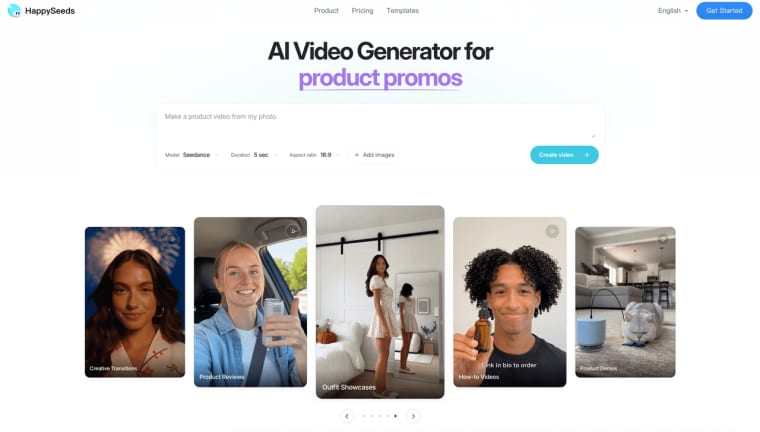
Before publishing, verify the final export matches the release notes and test it live on the page. Pika is the workflow example used throughout this guide. HappySeeds' AI Video Generator supports text-to-video, image-to-video, and reference-video remixing, with scene changes, voiceover, music, captions, and aspect-ratio options. Try it with the same brief or assets, then confirm the finished result still matches the app and the announced update.
Explore More Topics:
FAQ
Is Pika for ChatGPT available to every account?
Pika's ChatGPT page describes the plugin for web and desktop, but Pika does not publish a complete eligibility list by plan, region, or account. Sign in to the account you plan to use and check its app directory. If it is a managed work account, ask the workspace admin whether the plugin is enabled.
Can a founder upload existing product footage?
Pika's Help Center says its apps accept uploaded video, and the ChatGPT page documents bringing clips from your Pika library into a conversation. It does not confirm local-file upload in that ChatGPT workflow. Check the selected app's upload panel for file types, duration, and size before planning around existing footage.
What file formats can be downloaded?
Pika's ChatGPT page and Help Center do not specify the downloaded video format for this workflow. Do not promise a specific extension. Download a sample from the same app and confirm the file plays in a staging copy of the launch page before building the release around it.
Are generated clips licensed for commercial use?
Pika's Terms of Service say use is personal and noncommercial unless a subscription plan expressly permits commercial use. As of October 22, 2026, the pricing table excludes a commercial license for Free and Starter and includes one for Creator and Fancy. The Pika FAQ says paid Starter includes commercial use, so the public pages conflict. Do not infer permission from a paid subscription; get written confirmation from Pika for your account and chosen model before using a clip commercially. You also remain responsible for rights to uploaded assets, and Pika does not guarantee an output is unique or non-infringing. This is general information, not legal advice; confirm current terms and rights-holder permissions before publication.
Should a silent version include captions?
No captions are needed for a genuinely silent clip because it has no audio to transcribe. If the video adds information not already explained in the page text, provide an equivalent text alternative or audio track. For speech or meaningful sounds, add accurate synchronized captions, as W3C's captions guidance describes.