
What a Coding Agent Can't Do Without a Browser
Repository access reveals routes and tests. A browser session adds proof that a live page renders, a menu opens, or a form reaches the expected confirmation state. It is useful for reproducing UI bugs, checking public pages, and collecting structured evidence from authorized sites.
Keep every session within the approved site, account, and data scope.
Browser QA often follows an automation or deployment step. See how Gumloop handles an API-triggered workflow or how Dokploy stages a deployment before the browser check begins.
Setting Up the Browserbase Connection
- Create a Browserbase project and store its credentials securely.
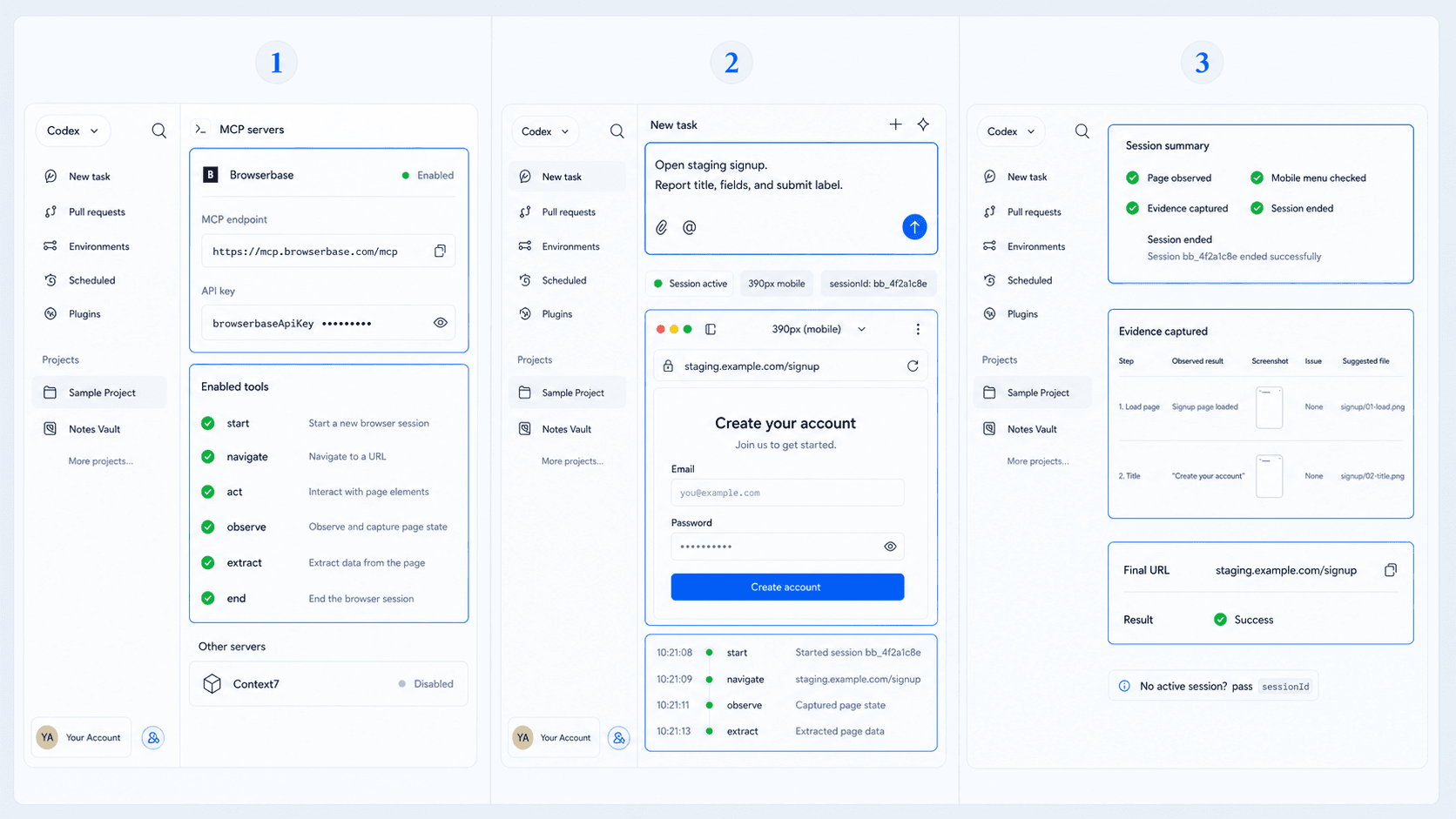
- Add the official Browserbase MCP server to the Codex MCP configuration. The hosted endpoint is:
[mcp_servers.browserbase]
url = "https://mcp.browserbase.com/mcp?browserbaseApiKey=YOUR_BROWSERBASE_API_KEY"
Replace YOUR_BROWSERBASE_API_KEY only in your local Codex configuration. Keep the real value out of repositories, prompts, screenshots, and shared logs.
- Restart the Codex surface and confirm the browser tools appear.
- Open a non-production URL that you own.
- End the session after the test.
The request path is:
Codex task -> MCP tool -> Browserbase session -> page observation -> test report
After setup, confirm that the MCP tool list includes start, navigate, act, observe, extract, and end. Run a minimal check on a site you control: call start, save the returned sessionId, navigate to the page, and extract its main heading.
The active Browserbase session is reused automatically while the same MCP connection remains open. After a reconnect or a new Codex task, call start with the saved sessionId to resume that session, then continue with navigate, act, observe, or extract. Call end when the check is complete.
Your First Browser-Based Codex Task
Start with observation: "Open the staging signup page. Report the page title, visible form fields, and submit button label. Leave the fields empty."
Then test a safe path: "Use the staging test account from the configured secret store. Complete login and return the final URL plus visible success message."
Ask for a structured output: "Check the mobile menu at 390px. Return: step, observed result, screenshot reference, issue, and suggested repository file."
Keep passwords, API keys, and session cookies in the configured secret store.
Testing, Scraping, and Other Use Cases
Browserbase can support navigation, actions, observation, and extraction through its documented MCP tools. Keep each run tied to a lawful, authorized purpose. For QA, use seeded accounts and disposable data. For extraction, respect site terms, robots guidance, rate limits, privacy, and regional requirements.
Combine browser evidence with repository checks because each covers a different signal. Record the test URL, viewport, Browserbase session ID, observed result, and run date when you perform a live check.
Map the User Journey Before Browser QA
Browser automation works best after the intended user journey is clear. HappySeeds lets a non-technical builder map screens, states, and actions before a coded project needs browser QA.
Follow the HappySeeds planning flow to define the path that Browserbase should later verify.
FAQ
No. Access follows the configured MCP tools, browser session, credentials, and task scope.
Use environment or secret-manager configuration and keep the value outside source files and prompts.
Prefer staging and seeded accounts. If production testing is necessary, use minimal permissions and an approved plan.
Authorization comes from the site owner and the applicable terms, privacy rules, and rate limits.
Ask for steps, observed behavior, evidence references, failures, and the likely code area to inspect.
Write the Browser Acceptance Path First
List the start URL, test account, actions, expected state, and evidence required. Browse HappySeeds app structures when those user states still need definition.
Launch with HappySeeds
Built the app but not the business? Start with HappySeeds to launch a live, monetizable AI app, or browse AI app templates to see what you can sell.