Quick Start is the shortest path through the basic HappySeeds workflow: start a project, make a few changes, and publish a shareable version.
Home is the main entry for creating a new project. You can type what you want to build directly into the main input and send it to create a new app.
For example, you can start with:
If you already have older work, use Projects to reopen it. If you want to browse public starting points, use the template area below Home.
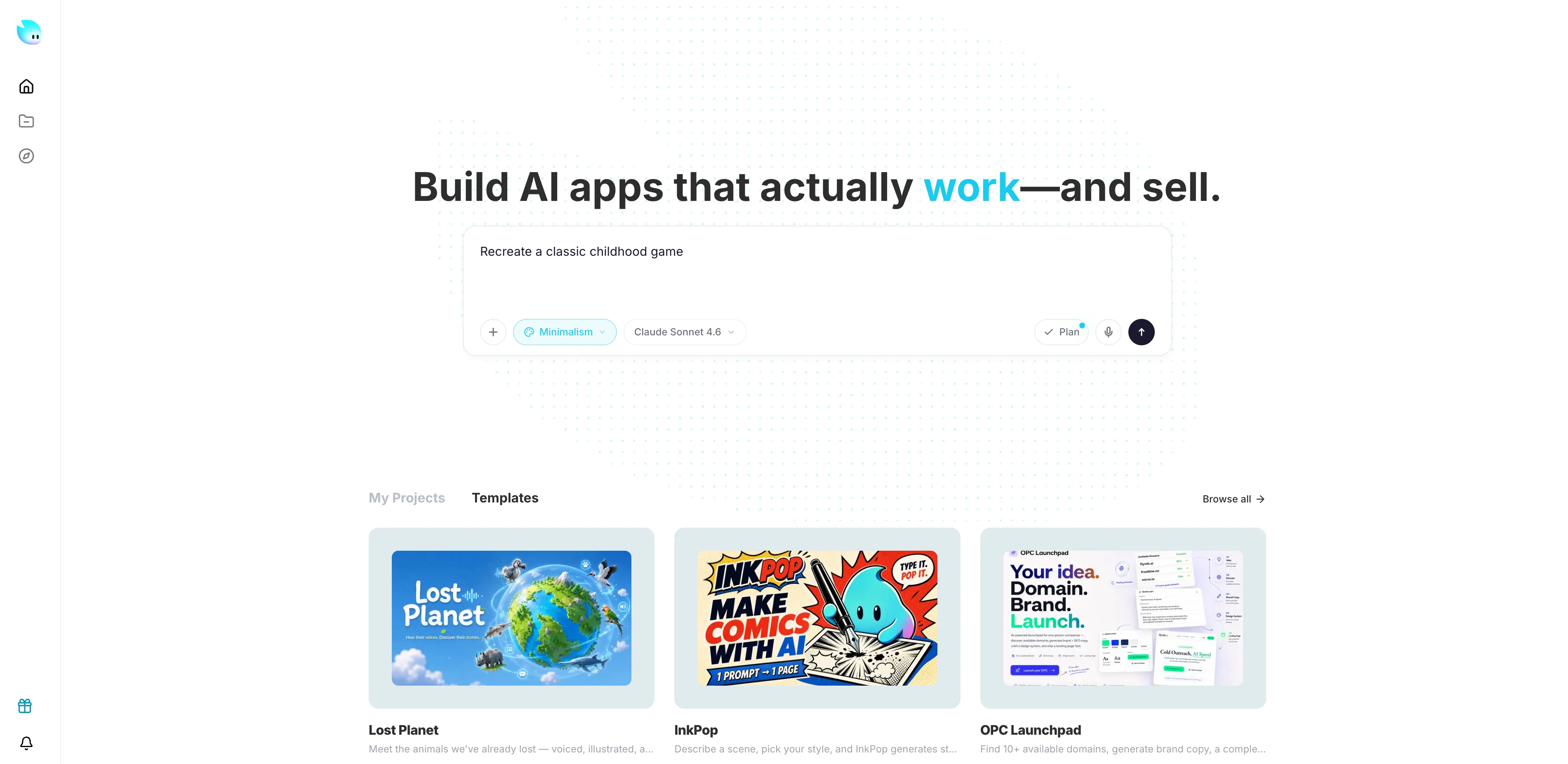
The Home composer is more than a plain text box. It helps you shape the first request before the project is created.
From the Home input area, you can:
Tab to accept a suggested continuationPlan if you want the first step to be planning-oriented instead of direct buildingIf the suggestion is useful, accept it and keep going. If not, continue typing your own version. The point is to get to a clearer first prompt with less effort.
Templates give you structure before you write a prompt. Pick one that matches the kind of page you want, not just the color palette.
Templates are useful when you want inspiration, a proven public starting point, or a faster first version with less prompt trial and error.
If a template already matches your direction, remix it or open it as your base instead of recreating the same structure from scratch.
The workspace keeps the conversation and the live preview together.
Use the chat to ask for changes, then check the preview before sending the next prompt. Good first edits are small and visible:
Home is also useful before you commit to one direction. You can try a few first prompts, compare outcomes, and only keep the project that is moving in the right direction.
This is especially helpful when:
When the preview matches what you want, open Deploy and publish the current version. Preview URLs are temporary and expire after 30 minutes, so use them only for quick checks. Share the published URL when you want someone else to open the project later.
