
Why Run Codex Inside Cursor at All
Cursor already puts editing, search, source control, and a terminal in one workspace. Adding Codex gives you a second way to delegate a bounded repository task while you inspect the files it changes. The useful benefit is context: you can point to a route, component, error, or test and review the result inside the project.
Use the Codex IDE extension for an editor-side conversation. Choose Codex CLI when commands and logs are the center of the task.
For the native extension path, see the Codex workflow in VS Code. If you prefer a terminal-led editor setup, compare the Windsurf workflow.
Install Codex and Open the Sidebar
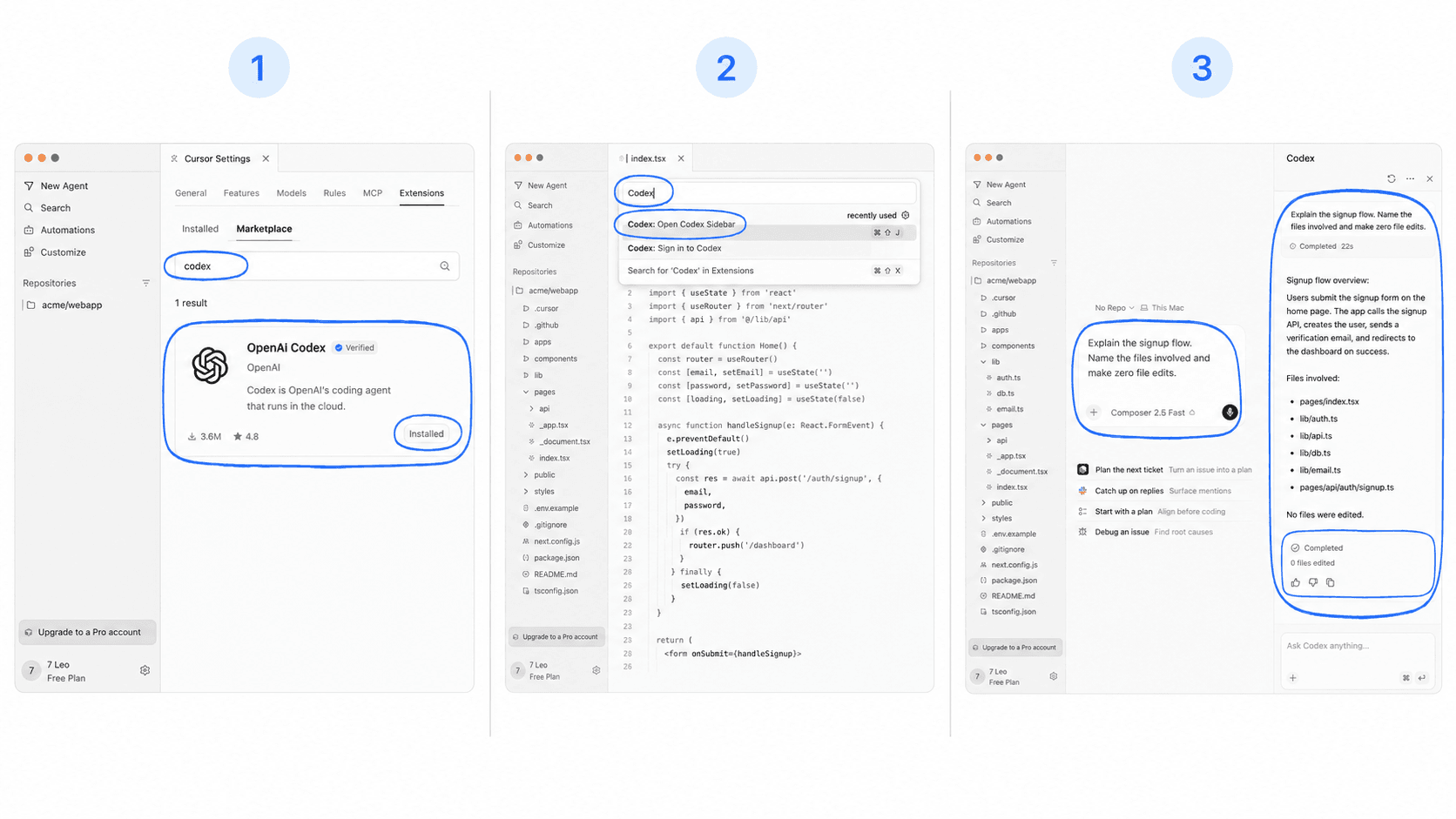
- Open Cursor and confirm the repository root is the active workspace.
- Install the official OpenAI extension.
- Sign in, then select
Codex: Open Codex Sidebarfrom the command palette. - Ask for a project explanation with zero edits.
- Request one small change and inspect the resulting diff.
Try: "Explain the signup flow. Name the files involved and make zero file edits."
Expected success: the Codex sidebar opens, the signed-in state is visible, and the first response names repository files without changing them. If the command is missing, confirm that the extension is enabled for the current profile, reload Cursor, and reopen the project.
Give Cursor a Reviewable Codex Task
Prefer the supported sign-in flow. Keep project secrets outside source files, screenshots, and prompts. Scope the task to named files or one behavior.
A good first edit prompt is: "Update the empty state in src/routes/projects. Change the user-facing copy in that section, return the changed files, and skip deployment commands."
For a checkable result, use: "Fix the failing profile-form test. Return: changed files, test command, test result, and any skipped check."
What to Do When Codex Won't Connect
Check the extension state, authentication, workspace, and network in that order. Reload Cursor, verify that the repository is trusted, and retry sign-in. If the extension still fails, run Codex CLI in the same workspace to separate an editor issue from an account or repository issue.
Keep secrets out of chat. Revoke any credential that was exposed and create a replacement.
When to Plan the App Before Opening Cursor
If the app is still at the idea stage, opening a repository may introduce technical decisions too early. HappySeeds gives non-technical builders a planning-first path for defining screens, actions, and acceptance criteria before choosing whether code is necessary.
Use an app template to structure the first version, then return to Cursor for the parts that require repository control.
Tested setup: HappySeeds Editorial Team; last reviewed July 30, 2026; Cursor 3.13.10 on macOS 14.8.7; official extension openai.chatgpt 26.721.30844 installed.
FAQ
Use the official OpenAI extension linked above. Open it from the command palette with Codex: Open Codex Sidebar.
Follow the authentication method shown by the official Codex surface you install. Keep every key outside the repository.
Scope depends on the opened workspace and permissions. Give it the smallest relevant folder and review every proposed change.
Ask for an explanation with zero edits or a single-file copy change, then inspect the response before expanding scope.
Choose the Right Starting Surface
If you are still deciding between a coding workspace and a guided app platform, compare Codex with an AI app builder before setting up the editor.
Launch with HappySeeds
Built the app but not the business? Start with HappySeeds to launch a live, monetizable AI app, or browse AI app templates to see what you can sell.