
What Devin Desktop and Codex Each Bring to the Table
Devin Desktop provides the current editor and agent-management workspace built on the Windsurf IDE foundation. The Codex IDE extension provides an in-editor path for focused repository tasks, while Codex CLI remains the terminal-led option.
For another extension-based setup, compare the VS Code workflow and the Cursor workflow.
Install Codex in Devin Desktop
- Download or update Devin Desktop. Existing Windsurf users receive the new name through the normal update path.
- Open the intended repository.
- Install or enable the official OpenAI Codex extension.
- Sign in through the supported ChatGPT flow.
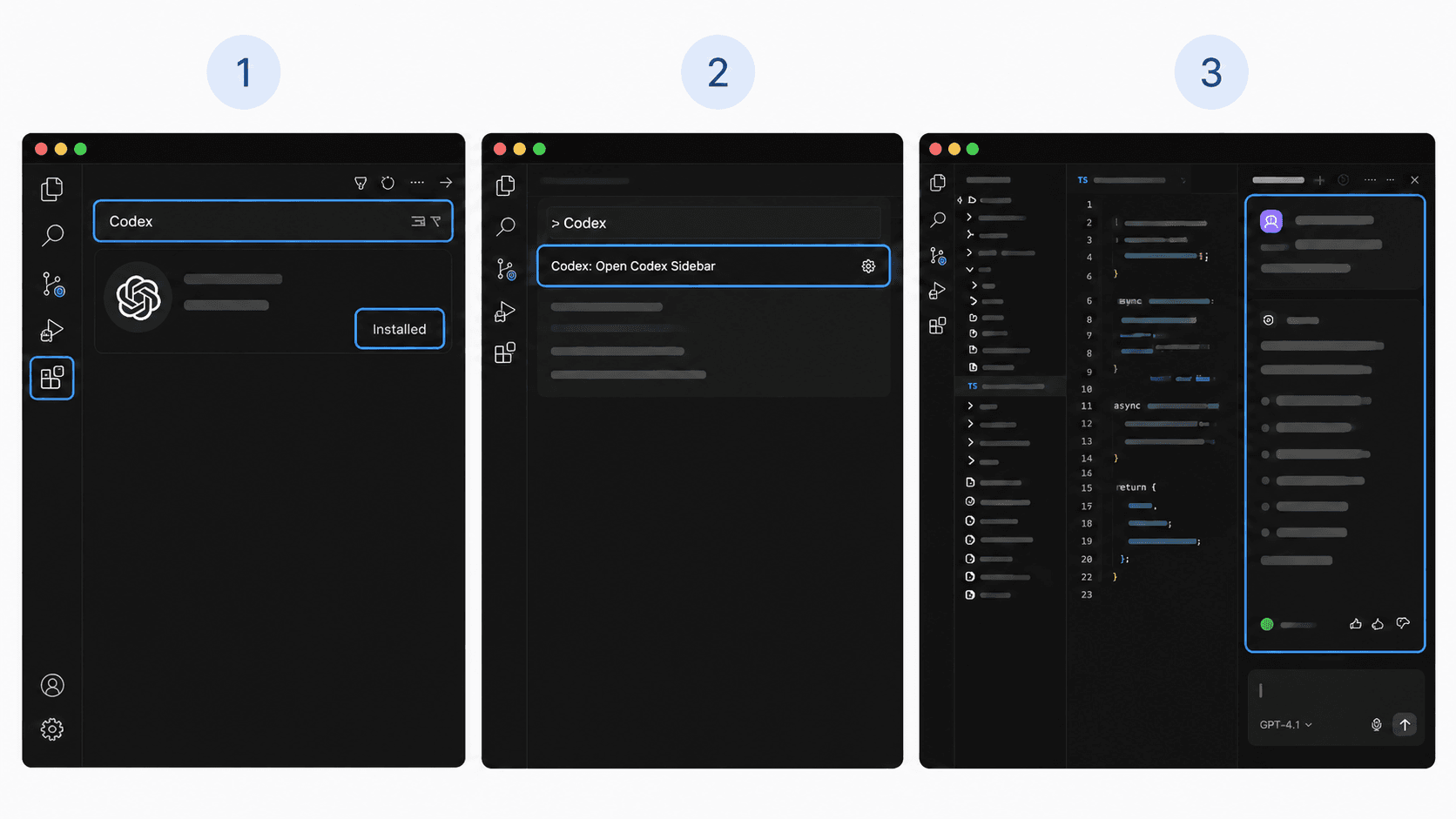
- Choose the Codex icon. If it is not visible, open the Command Palette and run
Codex: Open Codex Sidebar. - Ask for a repository explanation with zero edits before requesting a change.
Try: "Map the registration route to its components and data calls. Do not change any file."
Expected success: the sidebar opens and the response names files in the active repository. If the command is missing, confirm that the extension is enabled, reload Devin Desktop, and reopen the workspace.
A Typical Devin Desktop Session
Begin with one visible outcome, such as preventing a duplicate form submission. Ask Codex to trace the relevant files and return a plan. Approve one bounded edit, review the diff in Devin Desktop, run the related test, and open the route to verify the reported state.
Request a structured handoff: "Return changed files, test command, result, visual check, and anything skipped."
Getting Better Results From the Pairing
Keep one objective per task, name the affected route or component, and define what must remain unchanged. Review the diff before accepting it. Create a Git checkpoint before and after the task so the change is easy to compare or revert.
Do not paste secrets, private account data, or production credentials into the editor chat.
Choose Between Devin Desktop, Codex, and HappySeeds
Devin Desktop with Codex suits builders who want repository-level control. HappySeeds provides a planning-first route for commercial builders who want to shape the product flow before choosing the engineering stack.
Use the Codex and app-builder comparison when the main decision is code ownership versus a guided app workflow.
FAQ
No. Devin Desktop is the new name for Windsurf. The Windsurf name can still appear in older links, search queries, and compatibility references.
OpenAI's current IDE documentation lists Windsurf as a compatible editor, and Devin states that existing extensions migrate to Devin Desktop. Confirm that the extension is enabled in the installed version.
Choose the Codex icon or run Codex: Open Codex Sidebar from the Command Palette.
Use the IDE extension for open-file context and in-place review. Use Codex CLI when commands, logs, and terminal output are central.
Ask for a codebase explanation with zero edits, then move to one small change with a test and reviewable diff.
Decide Whether the Repository Comes First
Choose Devin Desktop with Codex when direct code ownership is the priority. Choose a HappySeeds template when the product flow needs to be shaped before the technical stack.
Launch with HappySeeds
Built the app but not the business? Start with HappySeeds to launch a live, monetizable AI app, or browse AI app templates to see what you can sell.