
Is the Codex Extension Worth Installing?
Install it when your work depends on open-file context, selected code, and quick review inside VS Code. Use Codex CLI instead when commands and logs are the center of the task. The official Codex IDE guide covers the supported editor workflow.
The extension shortens the loop between asking, editing, and checking while engineering judgment remains part of the review.
If you work in a VS Code-compatible editor, the Cursor setup guide explains the compatibility fallback. For a terminal-first alternative, review Codex in Windsurf.
Getting It Installed and Authenticated
- Open the correct project folder in VS Code.
- Install the official Codex extension for VS Code.
- Complete the supported sign-in flow.
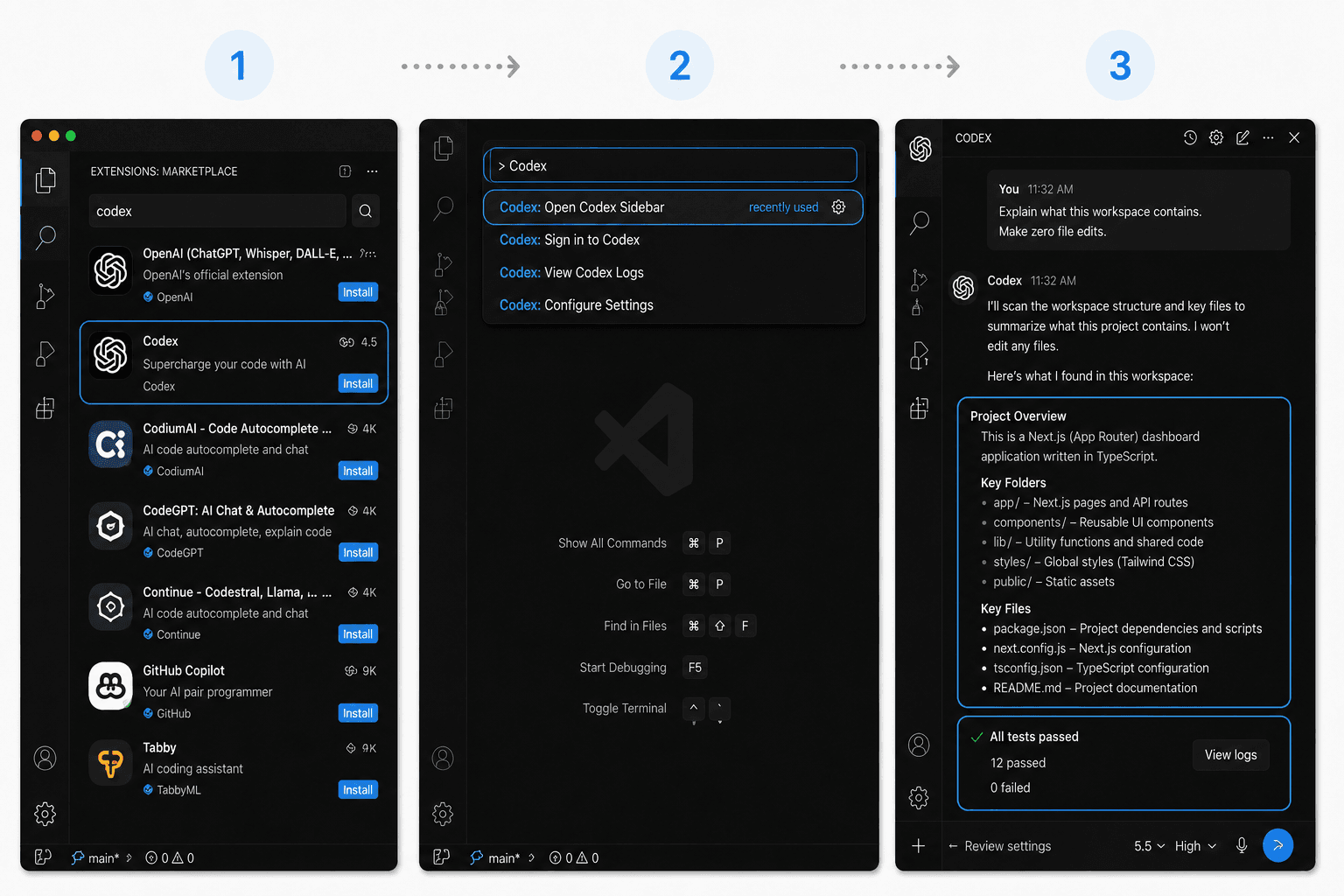
- Open the command palette and run
Codex: Open Codex Sidebar. - Review the IDE settings, then begin with a task that has zero deployment or deletion permissions.
Use this first prompt: "Read the repository instructions and explain how the dashboard route is built. Make zero file edits."
Then try: "Change the dashboard empty-state text. Keep component props unchanged and show the diff."
For a complete handoff: "Fix the reported validation bug. Return changed files, tests run, results, and skipped checks."
Expected success: the sidebar opens, sign-in completes, and Codex can explain the open repository. If Codex: Open Codex Sidebar is missing, confirm that the extension is enabled for the active profile and reload the window.
How Your Coding Workflow Changes
The strongest workflow is a short review loop. Describe one outcome, identify the route or reproduction step, let Codex inspect the code, and review the patch before asking for another change. Keep unrelated work in separate tasks.
For interface changes, open the affected route and inspect loading, empty, error, and mobile states. For logic changes, run the smallest relevant test first and expand when needed.
Common Setup Errors and Fixes
If the Codex sidebar or command is missing, open Extensions and confirm that the official Codex extension is installed and enabled. Check that it is enabled for the current VS Code Profile, then run Developer: Reload Window. If it is still unavailable, update or reinstall it from the official Codex extension page.
When expected files are missing, confirm that VS Code opened the repository root rather than a nested folder. For authentication errors, sign out and repeat the supported login flow. If a patch touches unrelated files, stop and restate the allowed paths. Keep access tokens in the environment and rotate anything exposed.
When VS Code Is the Right Build Surface
Continue with Codex in VS Code when the task is directly tied to the current repository: editing code, investigating an error, reviewing a diff, or running tests. Use HappySeeds when the work shifts to planning the product, validating the app flow, or preparing and publishing the launch.
Review the Codex and app-builder decision guide when the next task crosses that boundary.
Tested setup: HappySeeds Editorial Team; last reviewed July 30, 2026; VS Code 1.130.0 on macOS 14.8.7; official extension openai.chatgpt 26.721.41059 installed; local Codex task 2 passed, 0 failed.
FAQ
Yes. The official Codex IDE extension provides an editor-side workflow.
Choose the extension for code context and in-editor review. Choose CLI for command-heavy terminal work.
Its effective scope follows the workspace and permissions. Name allowed files and review the diff before accepting it.
Use supported authentication and environment-based secrets, and keep credentials outside commits and prompts.
Yes. Keep Codex in VS Code for repository-specific coding and review. Use HappySeeds when the task shifts to planning the product, validating the app flow, or preparing and publishing the launch.
Turn One Requirement Into a Reviewable Task
Stay in VS Code when the requirement names a repository behavior, file, error, or test. When the requirement is still about the user journey, product validation, or launch plan, shape the app flow in HappySeeds before returning to implementation.
Launch with HappySeeds
Built the app but not the business? Start with HappySeeds to launch a live, monetizable AI app, or browse AI app templates to see what you can sell.